AI字幕控件
适用场景
AI字幕控件应用广泛,例如在用户不熟悉音频源语言或者静音的时候,为用户提供字幕服务。
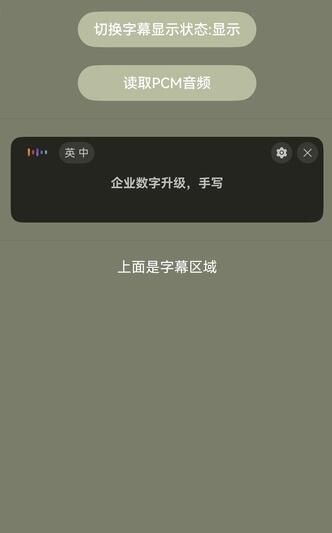
本章节将向您介绍如何使用AI字幕组件AICaptionComponent和AICaptionController展示AI字幕,效果如下图所示。
接口说明
AI字幕功能主要由AICaptionComponent提供,更多接口及使用方法请参见API参考。
| 接口 | 描述 |
|---|---|
| AICaptionComponent | AI字幕组件。 |
| AICaptionOptions | AI字幕初始化参数。 |
| AICaptionController | AI字幕组件的控制器,是AI字幕组件的主要功能入口类,用来操作AI字幕。它所承载的工作包括:写音频数据、获取音频流信息等。 |
开发步骤
-
从项目根目录进入/src/main/ets/pages/Index.ets文件,在使用AI字幕控件前,将实现AI字幕控件和其他相关的类添加至工程。
import { AICaptionComponent, AICaptionController, AICaptionOptions } from '@kit.SpeechKit'; -
简单配置页面的布局,加入AI字幕组件,并在aboutToAppear中设置AI字幕组件的传入参数。
import { hilog } from '@kit.PerformanceAnalysisKit';const TAG = 'AI_CAPTION_DEMO'class Logger {static info(...msg: string[]) {hilog.info(0x0000, TAG, msg.join())}static error(...msg: string[]) {hilog.error(0x0000, TAG, msg.join())}}@Entry@Componentstruct Index {private captionOption ?: AICaptionOptions;private controller = new AICaptionController();@State isShown: boolean = false;aboutToAppear(): void {// AI字幕初始化参数,设置字幕的不透明度和回调函数this.captionOption = {initialOpacity: 1,onPrepared: () => {Logger.info('onPrepared')},onError: (error) => {Logger.error(`onError, code: ${error.code}, msg: ${error.message}`)}}}build() {Column({ space: 20 }) {// 调用AICaptionComponent组件初始化字幕AICaptionComponent({isShown: this.isShown,controller: this.controller,options: this.captionOption}).width('100%').height(100)Divider()if (this.isShown) {Text('上面是字幕区域').fontColor(Color.White)}}.width('100%').height('100%').padding(10).backgroundColor('#7A7D6A')}} -
在布局中加入两个按钮以及点击事件的回调函数。
- 第一个按钮的回调函数负责控制AI字幕组件的显示状态。
- 第二个按钮的回调函数负责读取资源目录中的音频文件,将音频数据传给AI字幕组件。
import { AudioData } from '@kit.SpeechKit';@Entry@Componentstruct Index {isReading: boolean = false;async readPcmAudio() {this.isReading = true;let fileData: Uint8Array | undefined = undefined;try {fileData =await this.getUIContext()?.getHostContext()?.resourceManager.getMediaContent($r('app.media.chineseAudio').id);} catch (e) {Logger.info(`get fileData fail , msg ${e} `)}if (fileData === undefined) {return;}const bufferSize = 640;const byteLength = fileData.byteLength;let offset = 0;Logger.info('byteLength', byteLength.toString())let startTime = new Date().getTime();while (offset < byteLength) {// 模拟实际情况,读文件比录音机返回流快,所以要等待一段时间let nextOffset = offset + bufferSizeif (offset > byteLength) {this.isReading = false;return}const arrayBuffer = fileData.buffer.slice(offset, nextOffset);let data = new Uint8Array(arrayBuffer);Logger.info('data byteLength', data.byteLength.toString())const audioData: AudioData = {data: data}Logger.info(`offset: ${offset} | byteLength: ${byteLength} | bufferSize: ${bufferSize}`)if (this.controller) {Logger.info(`writeAudio: ${audioData.data.byteLength}`)try {this.controller.writeAudio(audioData)} catch (e) {Logger.error(`writeAudio exception`)}}offset = offset + bufferSize;const waitTime = bufferSize / 32await this.sleep(waitTime)}let endTime = new Date().getTime()this.isReading = false;Logger.info('playtime', JSON.stringify(endTime - startTime))}async sleep(time: number): Promise<void> {return new Promise(resolve => setTimeout(resolve, time))}build() {Column({ space: 20 }) {// ...Button('切换字幕显示状态:' + (this.isShown ? '显示' : '隐藏')).backgroundColor('#B8BDA0').width(200).onClick(() => {this.isShown = !this.isShown;})Button('读取PCM音频').backgroundColor('#B8BDA0').width(200).onClick(() => {if (!this.isReading) {void this.readPcmAudio()}})// ...}}}
开发实例
Index.ets
import { AICaptionComponent, AICaptionOptions, AICaptionController, AudioData } from '@kit.SpeechKit';
import { BusinessError } from '@kit.BasicServicesKit';
import { hilog } from '@kit.PerformanceAnalysisKit';

const TAG = 'AI_CAPTION_DEMO'

class Logger {
  static info(...msg: string[]) {
    hilog.info(0x0000, TAG, msg.join())
  }

  static error(...msg: string[]) {
    hilog.error(0x0000, TAG, msg.join())
  }
}

@Entry
@Component
struct Index {
  private captionOption?: AICaptionOptions;
  private controller: AICaptionController = new AICaptionController();
  @State isShown: boolean = false;
  isReading: boolean = false;

  aboutToAppear(): void {
    // AI字幕初始化参数,设置字幕的不透明度和回调函数
    this.captionOption = {
      initialOpacity: 1,
      onPrepared: () => {
        Logger.info('onPrepared')
      },
      onError: (error: BusinessError) => {
        Logger.error(`AICaption component error. Error code: ${error.code}, message: ${error.message}`)
      }
    }
  }

  async readPcmAudio() {
    this.isReading = true;
    // chineseAudio.pcm文件放在entry\src\main\resources\base\media路径下
    let fileData: Uint8Array | undefined = undefined;
    try {
      fileData =
        await this.getUIContext()?.getHostContext()?.resourceManager.getMediaContent($r('app.media.chineseAudio').id);
    } catch (e) {
      Logger.info(`get fileData fail , msg ${e} `)
    }
    if (fileData === undefined) {
      return;
    }
    const bufferSize = 640;
    const byteLength = fileData.byteLength;
    let offset = 0;
    Logger.info(`Pcm data total bytes: ${byteLength.toString()}`)
    let startTime = new Date().getTime();
    while (offset < byteLength) {
      // 模拟实际情况,读文件比录音机返回流快,所以要等待一段时间
      let nextOffset = offset + bufferSize
      if (offset > byteLength) {
        this.isReading = false;
        return
      }
      const arrayBuffer = fileData.buffer.slice(offset, nextOffset);
      let data = new Uint8Array(arrayBuffer);
      const audioData: AudioData = {
        data: data
      }

      if (this.controller) {
        try {
          this.controller.writeAudio(audioData)
        } catch (e) {
          Logger.error(`writeAudio exception`)
        }
      }
      offset = offset + bufferSize;
      const waitTime = bufferSize / 32
      await this.sleep(waitTime)
    }
    let endTime = new Date().getTime()
    this.isReading = false;
    Logger.info(`Audio play time: ${JSON.stringify(endTime - startTime)}`)
  }

  async sleep(time: number): Promise<void> {
    return new Promise(resolve => setTimeout(resolve, time))
  }

  build() {
    Column({ space: 20 }) {
      Button('切换字幕显示状态:' + (this.isShown ? '显示' : '隐藏'))
        .backgroundColor('#B8BDA0')
        .width(200)
        .onClick(() => {
          this.isShown = !this.isShown;
        })
      Button('读取PCM音频')
        .backgroundColor('#B8BDA0')
        .width(200)
        .onClick(() => {
          if (!this.isReading) {
            void this.readPcmAudio()
          }
        })
      Divider()
      // 调用AICaptionComponent组件初始化字幕
      AICaptionComponent({
        isShown: this.isShown,
        controller: this.controller,
        options: this.captionOption
      })
        .width('100%')
        .height(100)
      Divider()
      if (this.isShown) {
        Text('上面是字幕区域')
          .fontColor(Color.White)
      }
    }
    .width('100%')
    .height('100%')
    .padding(10)
    .backgroundColor('#7A7D6A')
  }
}