地图截图
本章节将向您介绍如何实现地图截图功能。
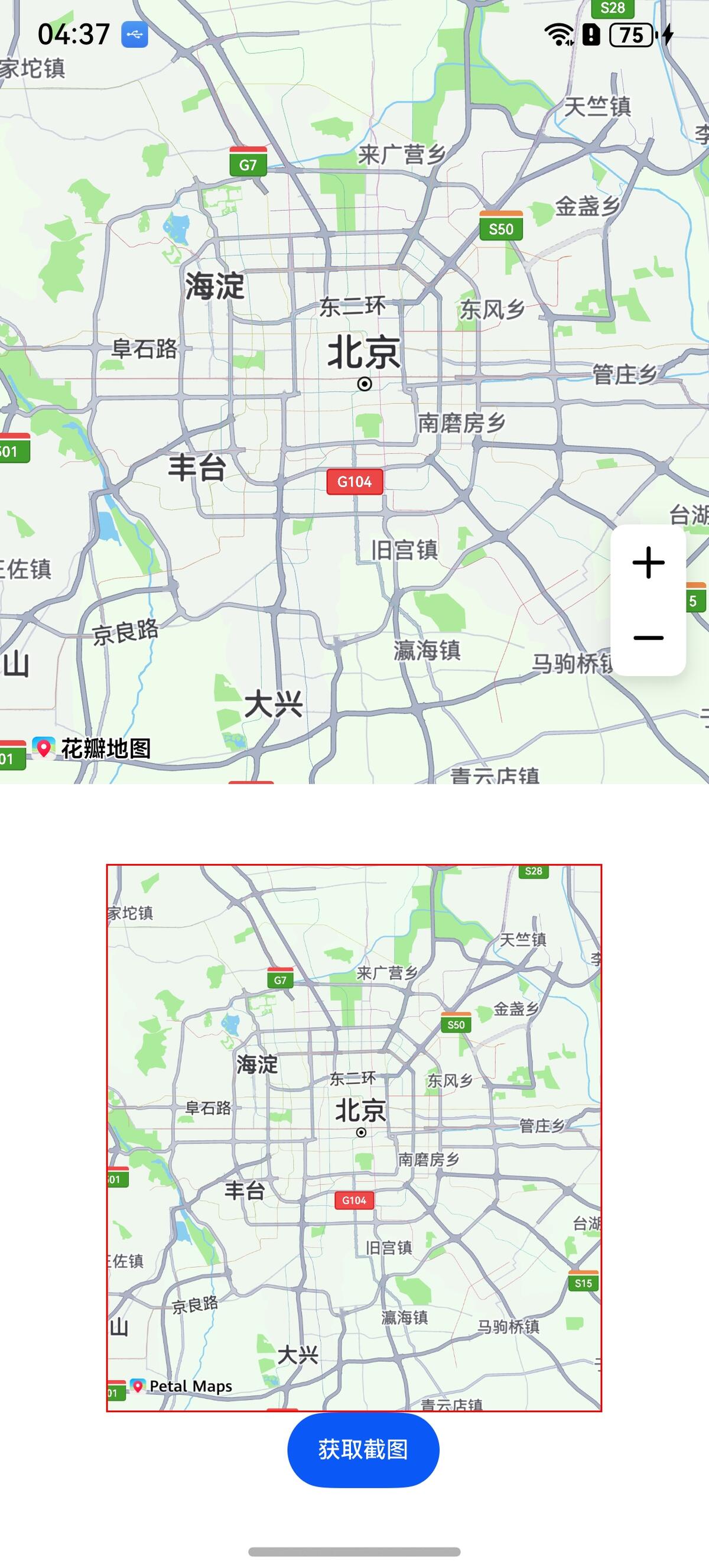
地图截图指对当前屏幕显示区域进行截屏,支持对地图、覆盖物、Logo进行屏幕截图。
接口说明
以下是地图截图相关接口,以下功能主要由snapshot提供,更多接口及使用方法请参见接口文档。
| 接口名 | 描述 |
|---|---|
| snapshot(): Promise<image.PixelMap> | 地图截图。 |
开发步骤
-
导入相关模块。
import { MapComponent, mapCommon, map } from '@kit.MapKit';import { AsyncCallback } from '@kit.BasicServicesKit';import { image } from '@kit.ImageKit'; -
调用snapshot方法对当前屏幕进行截图。
@Entry@Componentstruct HuaweiMapDemo {private mapOptions?: mapCommon.MapOptions;private callback?: AsyncCallback<map.MapComponentController>;private mapController?: map.MapComponentController;@State image?: image.PixelMap = undefined;aboutToAppear(): void {// 地图初始化参数,设置地图中心点坐标及层级this.mapOptions = {position: {target: {latitude: 39.9,longitude: 116.4},zoom: 10}};// 地图初始化的回调this.callback = async (err, mapController) => {if (!err) {// 获取地图的控制器类,用来操作地图this.mapController = mapController;} else {console.error(`Failed to initialize the map, code is:${err.code}, message is ${err.message}`);}};}build() {Stack() {Column() {MapComponent({ mapOptions: this.mapOptions, mapCallback: this.callback }).width('100%').height('50%');Scroll(new Scroller()) {Column() {Image(this.image).objectFit(ImageFit.Auto).border({ width: 1, color: Color.Red }).width("100%")Button("获取截图").margin({ left: 10 }).fontSize(12).onClick(async () => {if (this.mapController) {let pixelMap = await this.mapController.snapshot();this.image = pixelMap;}});}}.width('70%').height("50%")}.width('100%')}.height('100%')}}