使用PixelMap完成位图操作
当需要对目标图片中的部分区域进行处理时,可以使用位图操作功能。此功能常用于图片美化等操作。
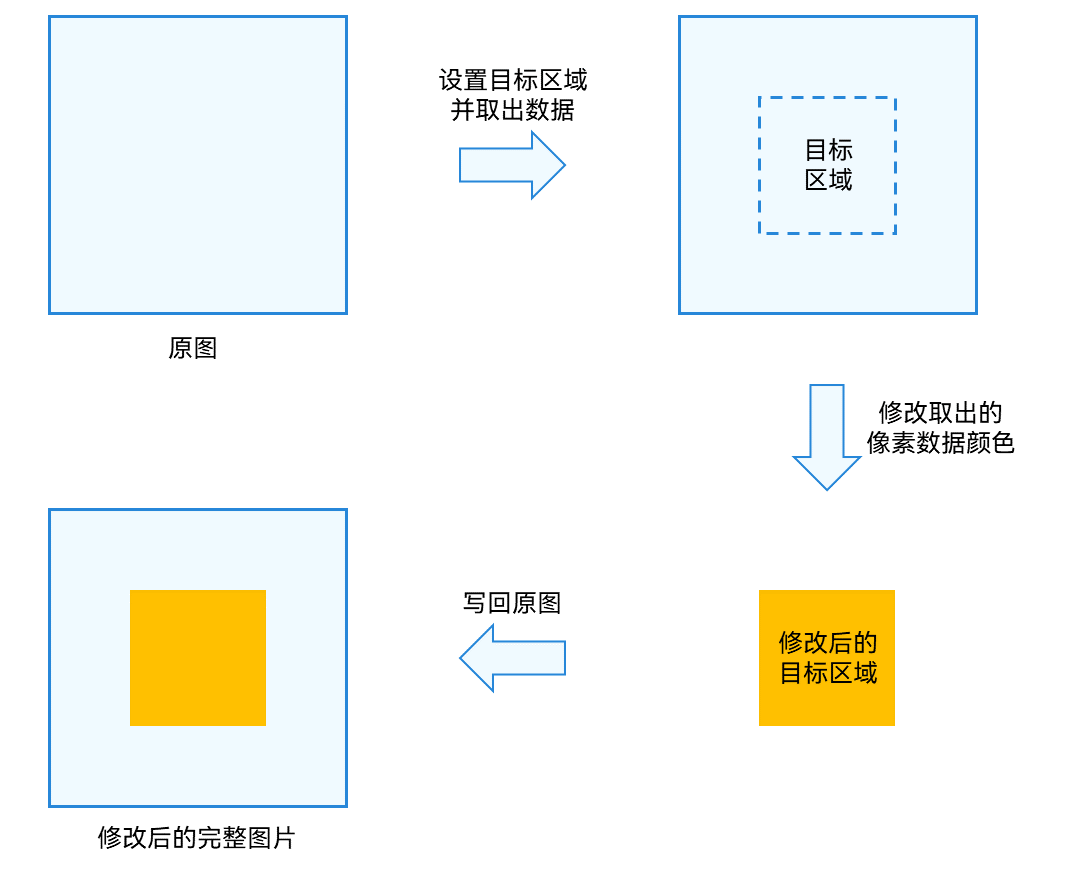
如下图所示,一张图片中,将指定的矩形区域像素数据读取出来,进行修改后,再写回原图片对应区域。
图1 位图操作示意图
开发步骤
位图操作相关API的详细介绍请参见PixelMap。
-
完成图片解码,获取PixelMap位图对象。
-
从PixelMap位图对象中获取信息。
import { image } from '@kit.ImageKit';import { BusinessError } from '@kit.BasicServicesKit';// 获取图像像素的总字节数。let pixelBytesNumber: number = pixelMap.getPixelBytesNumber();// 获取图像像素每行字节数。let rowBytes: number = pixelMap.getBytesNumberPerRow();// 获取当前图像像素密度。像素密度是指每英寸图片所拥有的像素数量。像素密度越大,图片越精细。let density: number = pixelMap.getDensity(); -
读取并修改目标区域像素数据,写回原图。

建议readPixelsToBuffer和writeBufferToPixels成对使用,readPixels和writePixels成对使用,避免因图像像素格式不一致,造成PixelMap图像出现异常。
import { image } from '@kit.ImageKit';import { BusinessError } from '@kit.BasicServicesKit';// 场景一:读取并修改整张图片数据。// 按照PixelMap的像素格式,读取PixelMap的图像像素数据,并写入缓冲区中。const buffer = new ArrayBuffer(pixelBytesNumber);pixelMap.readPixelsToBuffer(buffer).then(() => {console.info('Succeeded in reading image pixel data.');}).catch((error : BusinessError) => {console.error('Failed to read image pixel data. The error is: ' + error);})// 按照PixelMap的像素格式,读取缓冲区中的图像像素数据,并写入PixelMap。pixelMap.writeBufferToPixels(buffer).then(() => {console.info('Succeeded in writing image pixel data.');}).catch((error : BusinessError) => {console.error('Failed to write image pixel data. The error is: ' + error);})// 场景二:读取并修改指定区域内的图片数据。// 固定按照BGRA_8888格式,读取PixelMap指定区域内的图像像素数据,并写入PositionArea.pixels缓冲区中,该区域由PositionArea.region指定。const area : image.PositionArea = {pixels: new ArrayBuffer(8),offset: 0,stride: 8,region: { size: { height: 1, width: 2 }, x: 0, y: 0 }}pixelMap.readPixels(area).then(() => {console.info('Succeeded in reading the image data in the area.');}).catch((error : BusinessError) => {console.error('Failed to read the image data in the area. The error is: ' + error);})// 固定按照BGRA_8888格式,读取PositionArea.pixels缓冲区中的图像像素数据,并写入PixelMap指定区域内,该区域由PositionArea.region指定。pixelMap.writePixels(area).then(() => {console.info('Succeeded in writing the image data in the area.');}).catch((error : BusinessError) => {console.error('Failed to write the image data in the area. The error is: ' + error);})
开发示例
复制(深拷贝)位图并改变像素格式
- 该方法仅可实现PixelMap基本内容的复制,不支持复制色域和HDR元数据。如果不需要改变新PixelMap的像素格式,请使用clone或cloneSync。
- 该方法不支持将新PixelMap转换为下列像素格式:RGBA_1010102、YCBCR_P010、YCRCB_P010、ASTC_4x4。
-
完成图片解码,获取PixelMap位图对象。
-
参考以下代码对PixelMap进行深拷贝。
/*** 复制(深拷贝)PixelMap并改变像素格式。** @param pixelMap - 被复制的原PixelMap。* @param desiredPixelFormat - 新PixelMap的像素格式。如果不指定,则仍使用原PixelMap的像素格式。* @returns 新PixelMap的Promise。*/async function clonePixelMap(pixelMap: PixelMap, desiredPixelFormat?: image.PixelMapFormat): Promise<PixelMap> {// 获取原PixelMap的图片信息。const imageInfo = pixelMap.getImageInfoSync();// 读取原PixelMap的像素数据,并按照原PixelMap的像素格式写入缓冲区。const buffer = new ArrayBuffer(pixelMap.getPixelBytesNumber());await pixelMap.readPixelsToBuffer(buffer);// 根据原PixelMap的图片信息,生成初始化选项。const options: image.InitializationOptions = {// 数据源的像素格式:必须匹配原PixelMap的像素格式,否则新PixelMap的图像会出现异常。srcPixelFormat: imageInfo.pixelFormat,// 新PixelMap的像素格式。pixelFormat: desiredPixelFormat || imageInfo.pixelFormat,// 新PixelMap的透明度类型。alphaType: imageInfo.alphaType,// 新PixelMap的尺寸:必须匹配原PixelMap的尺寸,不支持传入其他尺寸以进行缩放。size: imageInfo.size};// 根据像素数据和初始化选项,创建新PixelMap。return await image.createPixelMap(buffer, options);}
将两张宽度相同的位图纵向拼接成一张长图
该方法仅支持以下像素格式的PixelMap:RGBA_8888、BGRA_8888、RGBA_F16。
-
完成图片解码,获取两张宽度相同且像素格式相同的PixelMap位图对象。
-
参考以下代码对两张PixelMap进行拼接。
async function concatPixelMap(pixelMap1: PixelMap, pixelMap2: PixelMap): Promise<PixelMap> {// 将pixelMap1的像素数据读取至area1.pixels中。const imageInfo1 = pixelMap1.getImageInfoSync();const area1: image.PositionArea = {pixels: new ArrayBuffer(pixelMap1.getPixelBytesNumber()),offset: 0,stride: pixelMap1.getBytesNumberPerRow(),region: {size: imageInfo1.size,x: 0,y: 0}};await pixelMap1.readPixels(area1);// 将pixelMap2的像素数据读取至area2.pixels中。const imageInfo2 = pixelMap2.getImageInfoSync();const area2: image.PositionArea = {pixels: new ArrayBuffer(pixelMap2.getPixelBytesNumber()),offset: 0,stride: pixelMap2.getBytesNumberPerRow(),region: {size: imageInfo2.size,x: 0,y: 0}};await pixelMap2.readPixels(area2);// 创建一个新的空白PixelMap,其宽度与pixelMap1和pixelMap2相等,高度为pixelMap1和pixelMap2相加。const options: image.InitializationOptions = {srcPixelFormat: imageInfo1.pixelFormat,pixelFormat: imageInfo1.pixelFormat,size: {width: imageInfo1.size.width,height: imageInfo1.size.height + imageInfo2.size.height}};const newPixelMap = image.createPixelMapSync(options);// 将之前获取的pixelMap1和pixelMap2的像素数据按顺序写入新PixelMap。await newPixelMap.writePixels(area1);area2.region.y = imageInfo1.size.height; // pixelMap2像素的写入位置应该从pixelMap1末行像素的下一行开始。await newPixelMap.writePixels(area2);return newPixelMap;}