ArkTS卡片编辑概述
ArkTS卡片提供卡片页面编辑能力,支持实现用户自定义卡片内容的功能,例如:编辑联系人卡片、修改卡片中展示的联系人、编辑天气卡片等。
卡片页面编辑分为半模态卡片编辑和全屏卡片编辑两种方式,从API version 18开始,支持半模态卡片编辑。
半模态卡片编辑
下面给出一个示例,介绍半模态卡片编辑的使用步骤。
实现原理
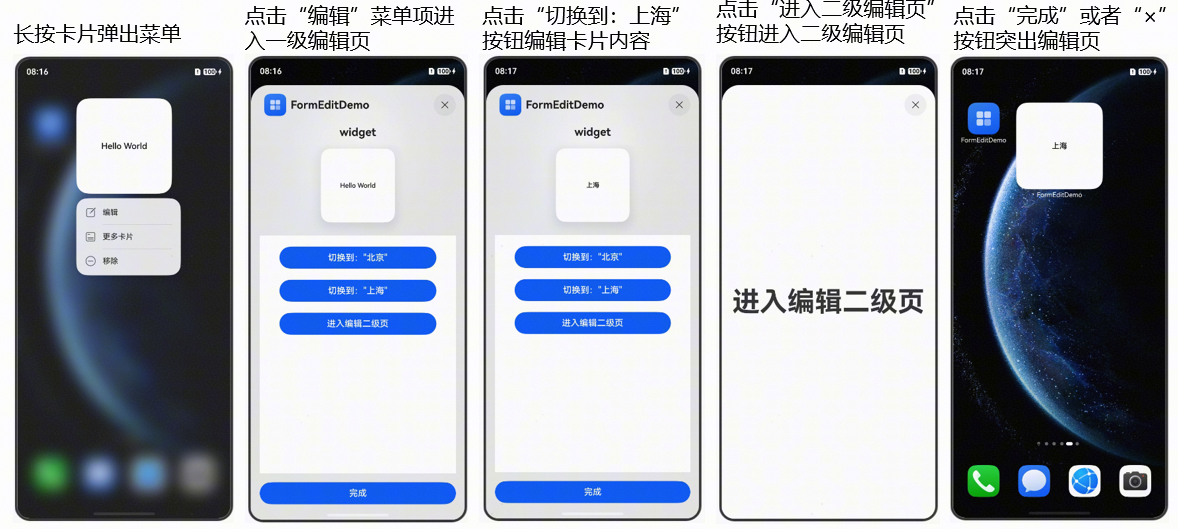
- 长按卡片弹出菜单,此时桌面通过formConfigAbility字段判断卡片是否支持卡片编辑能力来决定是否显示编辑按钮。
- 点击“编辑”菜单项,桌面通过formConfigAbility中的字段拉起对应的页面,进入一级编辑页。一级编辑页的编辑区域有限,用于比较简单的编辑布局。
- 预览区:灰色区域为预览区,用于呈现卡片编辑后的效果。预览区的布局是由桌面决定的。
- 编辑区:白色区域为编辑区,为应用自定义布局区域,用来实现卡片编辑的布局。卡片编辑区的布局由应用继承FormEditExtensionAbility后绘制而成,可用于简单的编辑布局。
- FormEditDemo:该字段为卡片宿主应用的应用名称,通过app.json5配置文件中的label字段配置。
- widget:该字段为卡片名称,通过卡片form_config.json配置文件中的name字段配置。
- “完成”按钮:编辑完成之后,点击按钮可退出半模态卡片编辑页面。
- 在卡片编辑区,点击“切换到:上海”按钮后,卡片提供方可以通过updateForm接口更新卡片信息,并在预览区显示。
- 在卡片编辑区,点击“进入二级编辑页”按钮,此时卡片通过FormEditExtensionContext提供的startSecondPage方法,将卡片提供方的二级编辑页信息传递给桌面,桌面拉起对应页面,即进入二级编辑页。二级编辑页主要有用于实现复杂的编辑布局,是否需要二级编辑页请开发者根据实际需求添加。
- 编辑完成之后退出编辑页。
开发步骤
-
创建卡片。
-
新增EntryFormEditAbility文件,用于实现FormEditExtensionAbility的半模态编辑组件,并在form_config.json文件中配置formConfigAbility字段。
- 半模态一级编辑页Ability的实现。
// entry/src/main/ets/entryformeditability/EntryFormEditAbility.etsimport { FormEditExtensionAbility } from '@kit.FormKit';import { UIExtensionContentSession, Want } from '@kit.AbilityKit';import { ExtensionEvent } from '../model/ExtensionEvent';const TAG: string = 'FormEditDemo[EntryFormEditAbility] -->';let storage: LocalStorage = ExtensionEvent.getStorage();export default class EntryFormEditAbility extends FormEditExtensionAbility {onCreate() {console.info(`${TAG} onCreate`);}onForeground(): void {console.info(`${TAG} EntryFormEditAbility onForeground.....`);}onBackground(): void {console.info(`${TAG} EntryFormEditAbility onBackground......`);}onDestroy(): void {console.info(`${TAG} EntryFormEditAbility onDestroy......`);}onSessionCreate(want: Want, session: UIExtensionContentSession) {// 获取被编辑卡片的卡片ID和预览卡片的卡片ID,通过storage同步到一级编辑页中const formId: string | undefined = want.parameters?.cardId as string;const previewFormId: string | undefined = want.parameters?.previewCardId as string;if (formId) {console.info(`${TAG} form id is ${formId}`);storage.setOrCreate('formId', formId);}if (previewFormId) {console.info(`${TAG} preview form id is ${previewFormId}`);storage.setOrCreate('previewFormId', previewFormId);}let extensionEvent: ExtensionEvent = new ExtensionEvent();extensionEvent.setStartSecondPage((): void => this.startSecondPage());storage.setOrCreate('extensionEvent', extensionEvent);storage.setOrCreate('context', this.context);try {// 拉起一级编辑页session.loadContent('pages/FormEditExtension', storage);} catch (e) {console.error(`${TAG} EntryFormEditAbility loadContent err, Code: ${e.code}, Message: ${e.message}`);}}onSessionDestroy(session: UIExtensionContentSession) {console.info(`${TAG} onSessionDestroy`);}private startSecondPage() {const bundleName: string = this.context.extensionAbilityInfo.bundleName;const secPageAbilityName: string = 'FormEditSecPageAbility';console.info(`${TAG} startSecondPage. bundleName: ${bundleName}, secPageAbilityName: ${secPageAbilityName}.`);try {// 拉起二级编辑页this.context.startSecondPage({bundleName: bundleName,parameters: {'secPageAbilityName': secPageAbilityName}});console.info(`${TAG} startSecondPage success!`);} catch (err) {console.error(`${TAG} startSecondPage failed, Code: ${err.code}, Message: ${err.message}`);}}};- 半模态二级编辑页Ability的实现。
// entry/src/main/ets/entryformeditability/FormEditSecPageAbility.etsimport { FormEditExtensionAbility } from '@kit.FormKit';import { UIExtensionContentSession, Want } from '@kit.AbilityKit';import { ExtensionEvent } from '../model/ExtensionEvent';const TAG = 'FormEditExtensionAbility';export default class FormEditSecPageAbility extends FormEditExtensionAbility {public storage: LocalStorage = new LocalStorage();onCreate() {console.info(TAG, `Ability onCreate`);}onForeground(): void {console.info(TAG, `Ability onForeground`);}onBackground(): void {console.info(TAG, `Ability onBackground`);}onDestroy(): void {console.info(TAG, `Ability onDestroy`);}onSessionCreate(want: Want, session: UIExtensionContentSession) {let extensionEvent: ExtensionEvent = new ExtensionEvent();this.storage.setOrCreate('extensionEvent', extensionEvent);this.storage.setOrCreate('session', session);try {session.loadContent('pages/FormEditSecPage', this.storage);console.info(TAG, `loadContent first edit page success`);} catch (e) {console.error(TAG, `EntryFormEditAbility loadContent err, want: ${e?.message}`);}}onSessionDestroy(session: UIExtensionContentSession) {console.info(TAG, `onSessionDestroy`);}}- 新增EntryFormEditAbility需要在module.json5配置,配置如下。
// entry/src/main/module.json5{"module": {// ..."extensionAbilities": [{// 一级编辑页"name": "EntryFormEditAbility","srcEntry": "./ets/entryformeditability/EntryFormEditAbility.ets","type": "formEdit"},{// 二级编辑页"name": "FormEditSecPageAbility","srcEntry": "./ets/entryformeditability/FormEditSecPageAbility.ets","type": "formEdit"}]}}- 卡片form_config.json文件实现。
// entry/src/main/resources/base/profile/form_config.json{"forms": [{"name": "widget","displayName": "$string:widget_display_name","description": "$string:widget_desc","src": "./ets/widget/pages/WidgetCard.ets","uiSyntax": "arkts","formConfigAbility": "ability://EntryFormEditAbility","isDynamic": true,"isDefault": true,"updateEnabled": false,"scheduledUpdateTime": "10:30","multiScheduledUpdateTime": "11:30,16:30","updateDuration": 1,"defaultDimension": "1*2","supportDimensions": ["1*2","2*2","2*4","4*4","6*4"]}]} -
实现一级编辑页布局,通过updateForm接口去刷新被编辑卡片的信息和预览卡片信息,通过startSecondPage方法去拉起二级编辑页。
- 一级编辑页布局实现如下。
// entry/src/main/ets/pages/FormEditExtension.etsimport { common, UIExtensionContentSession } from '@kit.AbilityKit';import { preferences } from '@kit.ArkData';import { formBindingData, formProvider } from '@kit.FormKit';import { BusinessError } from '@kit.BasicServicesKit';import { ExtensionEvent } from '../model/ExtensionEvent';import { PreferencesUtil } from '../common/PreferencesUtil';import { FormData } from '../common/CommonData';const TAG: string = 'FormEditDemo[Extension] -->';let storage: LocalStorage = ExtensionEvent.getStorage();@Entry(storage)@Componentstruct FormEditExtension {@State message1: string = '北京';@State message2: string = '上海';private formId: string = storage.get('formId') as string;private previewFormId: string = storage.get('previewFormId') as string;private session: UIExtensionContentSession =storage.get<UIExtensionContentSession>('session') as UIExtensionContentSession;private extensionEvent: ExtensionEvent = storage.get<ExtensionEvent>('extensionEvent') as ExtensionEvent;// 在API version 22以前,需要通过import LiveFormExtensionContext from 'application/LiveFormExtensionContext';// 导入LiveFormExtensionContext。该导入方式在DevEco Studio中标红,但不影响编译运行。// 可以直接使用LiveFormExtensionContext。在API version 22及以后,支持通过import { common } from '@kit.AbilityKit';// 导入LiveFormExtensionContext。并通过common.LiveFormExtensionContext的方式使用。private context: common.FormEditExtensionContext | undefined =storage.get<common.FormEditExtensionContext>('context');updateForm(message: string) {if (!this.formId && !this.previewFormId) {return;}if (this.context) {let util = PreferencesUtil.getInstance();let preferences = util.getPreferences(this.context) as preferences.Preferences;util.preferencesPut(preferences, this.formId, new FormData(this.formId, message));}let param: Record<string, string> = {'message': message}let obj: formBindingData.FormBindingData = formBindingData.createFormBindingData(param);try {// 刷新被编辑卡片的信息formProvider.updateForm(this.formId, obj, (error: BusinessError) => {if (error) {console.error(TAG, `callback error, code: ${error.code}, message: ${error.message})`);return;}console.info(TAG, `formProvider updateForm success`);});} catch (error) {console.error(TAG, `catch error, Code: ${error.code}, Message: ${error.message}`);}if (!this.previewFormId) {console.error(TAG, 'previewFormId is empty');return;}try {// 刷新预览卡片的信息formProvider.updateForm(this.previewFormId, obj, (error: BusinessError) => {if (error) {console.error(TAG, `callback error, code: ${error.code}, message: ${error.message})`);return;}console.info(TAG, `formProvider updateForm success`);});} catch (error) {console.error(TAG, `catch error, Code: ${error.code}, Message: ${error.message}`);}}onPageShow() {console.info(`${TAG} onPageShow. extensionEvent`);}build() {Row() {Column() {Button($r('app.string.button_one')).width('80%').type(ButtonType.Capsule).margin({top: 20}).onClick(() => {console.info(`${TAG} Button1 onClick ${storage.get('message')}`);this.updateForm(this.message1);storage.setOrCreate('message', this.message1);})Button($r('app.string.button_two')).width('80%').type(ButtonType.Capsule).margin({top: 20}).onClick(() => {console.info(`${TAG} Button2 onClick`);this.updateForm(this.message2);storage.setOrCreate('message', this.message2);})Button($r('app.string.button_three')).width('80%').type(ButtonType.Capsule).margin({top: 20}).onClick(async () => {console.info(`${TAG} Button onClick`);// 拉起二级编辑页this.extensionEvent?.startFormEditSecondPage();})}}.justifyContent(FlexAlign.Center).width('100%')}}- 新增FormEditSecPage.ets文件用来实现二级编辑页布局。
// entry/src/main/ets/pages/FormEditSecPage.ets@Entry@Componentstruct FormEditSecPage {@State message: string | ResourceStr = $r('app.string.button_three');build() {RelativeContainer() {Text(this.message).id('HelloWorld').fontSize($r('app.float.page_text_font_size')).fontWeight(FontWeight.Bold).alignRules({center: { anchor: '__container__', align: VerticalAlign.Center },middle: { anchor: '__container__', align: HorizontalAlign.Center }}).onClick(() => {this.message = 'Welcome';})}.height('100%').width('100%')}}-
加载布局文件。
// entry/src/main/resources/base/profile/main_pages.json{"src": ["pages/Index","pages/FormEditExtension","pages/FormEditSecPage"]} -
新增ExtensionEvent文件,封装startSecondPage方法到startFormEditSecondPage中,供业务使用。
// entry/src/main/ets/model/ExtensionEvent.etsconst TAG: string = 'FormEditDemo[ExtensionEvent] -->';const LOCAL: Record<string, string> = { 'formId': '', 'previewFormId': '', 'message': '' };export class ExtensionEvent {private static storage = new LocalStorage(LOCAL);public static getStorage(): LocalStorage {return ExtensionEvent.storage;}public setStartSecondPage(startSecondPage: () => void) {console.info(`${TAG} setStartSecondPage`);this.startSecondPage = startSecondPage;}public async startFormEditSecondPage() {console.info(`${TAG} startFormEditSecondPage call`);this.startSecondPage();}private startSecondPage: () => void = (): void => {console.info(`${TAG} startSecondPage is empty!`);};} -
卡片信息持久化。每次进入卡片编辑页,预览卡片都需要与被编辑卡片保持一致,所以需要持久化卡片信息。
- 新增PreferencesUtil文件,主要是来封装Preferences首选项,供业务做持久化数据使用。
// entry/src/main/ets/common/PreferencesUtil.etsimport { preferences } from '@kit.ArkData';import { BusinessError } from '@kit.BasicServicesKit';import { FormData } from './CommonData';const TAG: string = 'PreferencesUtil';const MY_STORE: string = 'myStore';export class PreferencesUtil {private static preferencesUtil: PreferencesUtil;public static getInstance(): PreferencesUtil {if (!PreferencesUtil.preferencesUtil) {PreferencesUtil.preferencesUtil = new PreferencesUtil();}return PreferencesUtil.preferencesUtil;}getPreferences(context: Context): preferences.Preferences | undefined {try {preferences.removePreferencesFromCacheSync(context, MY_STORE);return preferences.getPreferencesSync(context, { name: MY_STORE });} catch (error) {let err = error as BusinessError;console.error(TAG, `getPreferences failed, error code=${err.code}, message=${err.message}`);return undefined;}}preferencesFlush(preferences: preferences.Preferences) {preferences.flush((err) => {if (err) {console.error(TAG, `Failed to flush. Code:${err.code}, message:${err.message}`);}})}preferencesPut(preferences: preferences.Preferences, formID: string, value: FormData): void {try {preferences.putSync(formID, value);this.preferencesFlush(preferences);} catch (error) {let err = error as BusinessError;console.error(TAG, `preferencesPut failed, error code=${err.code}, message=${err.message}`);}}removePreferencesFromCache(context: Context): void {preferences.removePreferencesFromCache(context, MY_STORE).catch((err: BusinessError) => {console.error(TAG, `removePreferencesFromCache failed, error code=${err.code}, message=${err.message}`);});}getValue(preferences: preferences.Preferences, formID: string): FormData | undefined {if (preferences === null) {console.error(TAG, `preferences is null`);return undefined;}try {return preferences.getSync(formID, new FormData('')) as FormData;} catch (error) {let err = error as BusinessError;console.error(TAG, `getSync failed, error code=${err.code}, message=${err.message}`);return undefined;}}removeFormId(context: Context, formId: string) {try {let preferences = this.getPreferences(context);if (!preferences) {console.error(TAG, `preferences is null`);return;}if (preferences.hasSync(formId)) {preferences.deleteSync(formId);this.preferencesFlush(preferences);}} catch (error) {console.error(TAG, `Failed to get preferences. Code:${error.code}, message:${error.message}`);}}}- 为确保预览卡片和被编辑卡片信息同步,新建卡片时,在onAddForm回调函数中需要判断'ohos.extra.param.key.edit_form_id'字段是否携带了卡片ID。如果携带了卡片ID,则就是预览卡片则需要从数据库获取被编辑卡片的信息。
// entry/src/main/ets/entryformability/WidgetCard.etsimport { formBindingData, FormExtensionAbility, formInfo } from '@kit.FormKit';import { Want } from '@kit.AbilityKit';import { PreferencesUtil } from '../common/PreferencesUtil';import { FormData } from '../common/CommonData';export default class EntryFormAbility extends FormExtensionAbility {onAddForm(want: Want) {let editFormId: string = '';let formId: string = '';// 初始化首选项数据库let util = PreferencesUtil.getInstance();let preferences = util.getPreferences(this.context);if (want.parameters) {formId = want.parameters[formInfo.FormParam.IDENTITY_KEY] as string;editFormId = want.parameters['ohos.extra.param.key.edit_form_id'] as string;}// 如果是编辑页面的预览卡片需要在创建时把编辑的卡片信息更新到预览卡片上if (editFormId && preferences) {let formData: FormData = util.getValue(preferences, editFormId) as FormData;return formBindingData.createFormBindingData({'message': formData.text});}return formBindingData.createFormBindingData('');}onCastToNormalForm(formId: string) {}onUpdateForm(formId: string) {}onFormEvent(formId: string, message: string) {}onRemoveForm(formId: string) {}onAcquireFormState(want: Want) {return formInfo.FormState.READY;}}- 卡片布局文件如下。
// entry/src/main/ets/widget/pages/WidgetCard.etslet storage: LocalStorage = new LocalStorage();@Entry(storage)@Componentstruct WidgetCard {@LocalStorageProp('message') title: string = 'Hello World';readonly actionType: string = 'router';readonly abilityName: string = 'EntryAbility';readonly message: string = 'add detail';readonly fullWidthPercent: string = '100%';readonly fullHeightPercent: string = '100%';build() {Row() {Column() {Text(this.title).fontSize($r('app.float.font_size')).fontWeight(FontWeight.Medium).fontColor($r('sys.color.font'))}.width(this.fullWidthPercent)}.height(this.fullHeightPercent).backgroundColor($r('sys.color.comp_background_primary')).onClick(() => {postCardAction(this, {action: this.actionType,abilityName: this.abilityName,params: {message: this.message}});})}}- 新增CommonData.ets文件,用来定义卡片数据结构。
// entry/src/main/ets/common/CommonData.etsexport class FormData {public formId: string = '';public text: string = 'Hello World';constructor(formId: string, text?: string) {this.formId = formId;this.text = text ? text : 'Hello World';}} -
资源文件如下。
// entry/src/main/resources/base/element/string.json{"string": [// ...{"name": "button_one","value": "切换到:北京"},{"name": "button_two","value": "切换到:上海"},{"name": "button_three","value": "进入编辑二级页"}]} -
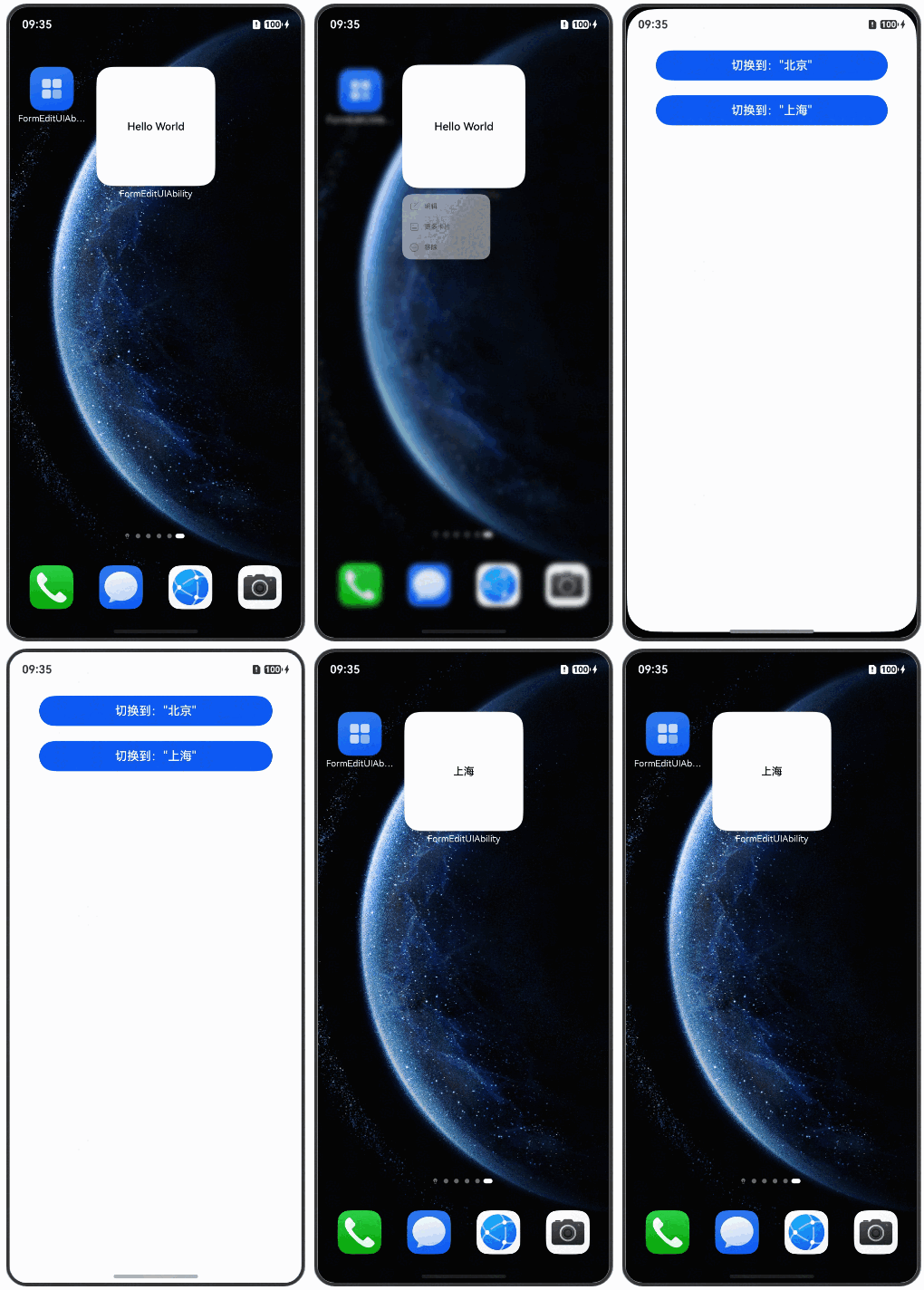
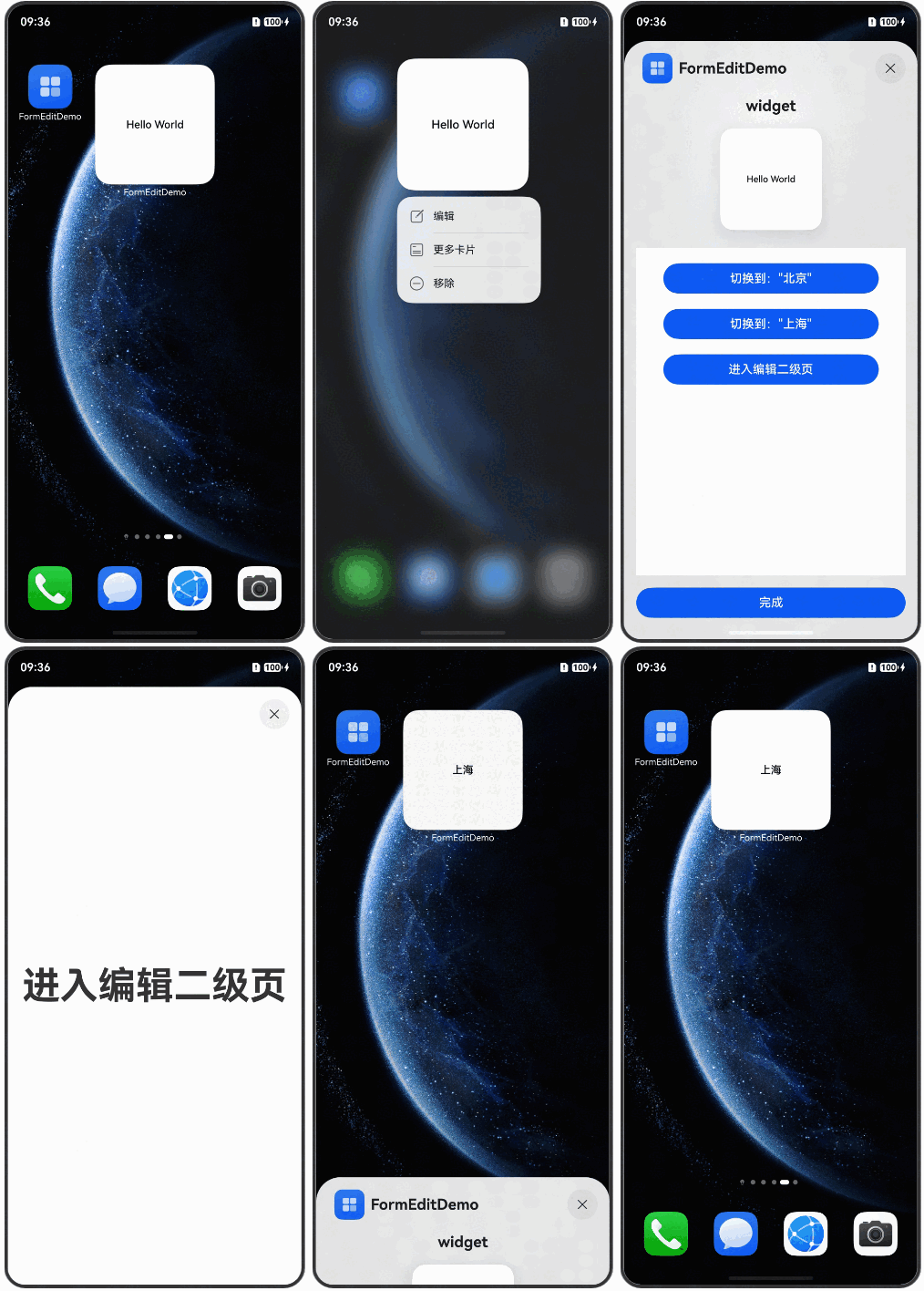
运行效果如下:
全屏卡片编辑
实现原理
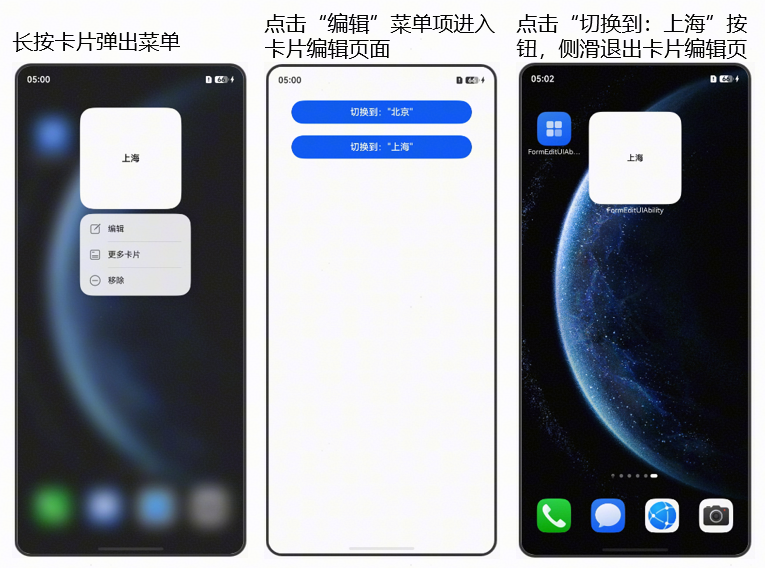
- 长按卡片弹出菜单。桌面通过formConfigAbility字段判断卡片是否支持卡片编辑能力来决定是否显示编辑按钮。
- 点击“编辑”菜单项进入全屏编辑页。桌面通过formConfigAbility字段的信息拉起卡片编辑页。
- 点击“切换到:上海”按钮编辑卡片内容。提供方通过updateForm接口去更新编辑卡片的信息。
开发步骤
下面给出示例,实现如下功能:长按卡片弹出编辑菜单,点击“编辑”菜单项进入全屏编辑页,修改卡片内容。
-
创建卡片。
-
开发者需要新增EntryEditAbility.ets文件,继承UIAbility组件,实现onCreate和onNewWant回调函数。卡片使用方会通过Want的parameters字段把被编辑的卡片ID带进来。并且需要再form_config.json文件中配置formConfigAbility字段。
- 实现编辑页面的Ability。
// entry/src/main/ets/entryability/EntryEditAbility.etsimport { AbilityConstant, ConfigurationConstant, UIAbility, Want } from '@kit.AbilityKit';import { hilog } from '@kit.PerformanceAnalysisKit';import { window } from '@kit.ArkUI';import { PreferencesUtil } from '../common/PreferencesUtil';import { preferences } from '@kit.ArkData';const DOMAIN = 0x0000;export default class EntryEditAbility extends UIAbility {onCreate(want: Want, launchParam: AbilityConstant.LaunchParam): void {const formId: string = want.parameters?.formId as string;hilog.info(DOMAIN, 'testTag', 'onCreate form id is' + formId)if (formId) {// 存储被编辑的卡片ID,后续编辑卡片会用let util = PreferencesUtil.getInstance();let preferences = util.getPreferences(this.context) as preferences.Preferences;util.preferencesPut(preferences, formId);}try {this.context.getApplicationContext().setColorMode(ConfigurationConstant.ColorMode.COLOR_MODE_NOT_SET);} catch (err) {hilog.error(DOMAIN, 'testTag', 'Failed to set colorMode. Code:${err.code}, message:${err.message}');}hilog.info(DOMAIN, 'testTag', '%{public}s', 'Ability onCreate');}onNewWant(want: Want, launchParam: AbilityConstant.LaunchParam) {// 热启动编辑页时刷新被编辑的卡片IDconst formId: string = want.parameters?.formId as string;hilog.info(DOMAIN, 'testTag', 'onNewWant form id is' + formId)if (formId) {// 初始化首选项数据库let util = PreferencesUtil.getInstance();let preferences = util.getPreferences(this.context) as preferences.Preferences;util.preferencesPut(preferences, formId);}}onDestroy(): void {hilog.info(DOMAIN, 'testTag', '%{public}s', 'Ability onDestroy');}onWindowStageCreate(windowStage: window.WindowStage): void {// Main window is created, set main page for this abilityhilog.info(DOMAIN, 'testTag', '%{public}s', 'Ability onWindowStageCreate');windowStage.loadContent('pages/FormEditIndex', (err) => {if (err.code) {hilog.error(DOMAIN, 'testTag', 'Failed to load the content. Code:${err.code}, message:${err.message}');return;}hilog.info(DOMAIN, 'testTag', 'Succeeded in loading the content.');});AppStorage.setOrCreate('windowStage', this.context);}onWindowStageDestroy(): void {// Main window is destroyed, release UI related resourceshilog.info(DOMAIN, 'testTag', '%{public}s', 'Ability onWindowStageDestroy');}onForeground(): void {// Ability has brought to foregroundhilog.info(DOMAIN, 'testTag', '%{public}s', 'Ability onForeground');}onBackground(): void {// Ability has back to backgroundhilog.info(DOMAIN, 'testTag', '%{public}s', 'Ability onBackground');}}- 新增EntryEditAbility需要在module.json5配置,配置如下。
"abilities": [// ...{"name": "FormEditAbility","srcEntry": "./ets/entryability/EntryEditAbility.ets","description": "$string:EntryAbility_desc","icon": "$media:layered_image","label": "$string:EntryAbility_label","startWindowIcon": "$media:startIcon","startWindowBackground": "$color:start_window_background","exported": true,}],- 卡片form_config.json文件实现。
// entry/src/main/resources/base/profile/form_config.json{"forms": [{"name": "widget","displayName": "$string:widget_display_name","description": "$string:widget_desc","src": "./ets/widget/pages/WidgetCard.ets","uiSyntax": "arkts","isDynamic": true,"isDefault": true,"updateEnabled": false,"formConfigAbility": "ability://FormEditAbility","scheduledUpdateTime": "10:30","updateDuration": 1,"defaultDimension": "2*2","supportDimensions": ["2*2"]}]} -
新增FormEditIndex.ets文件实现全屏编辑页布局,通过updateForm接口去刷新被编辑卡片的信息。
// entry/src/main/ets/pages/FormEditIndex.etsimport { formBindingData, formProvider } from '@kit.FormKit';import { BusinessError } from '@kit.BasicServicesKit';import { PreferencesUtil } from '../common/PreferencesUtil';import { preferences } from '@kit.ArkData';const TAG: string = 'FormEdit -->';@Entry@Componentstruct FormEditIndex {@State message: string = 'Hello World';@State message1: string = '北京';@State message2: string = '上海';updateForm(message: string) {// 通过数据库获取当前需要编辑的卡片IDlet util = PreferencesUtil.getInstance();let preferences = util.getPreferences(this.getUIContext().getHostContext() as Context) as preferences.Preferences;let formId: string = util.getValue(preferences) as string;if (!formId) {return;}console.info(TAG, `doy: formId: ${formId}, message: ${message}`)let param: Record<string, string> = {'message': message}let obj: formBindingData.FormBindingData = formBindingData.createFormBindingData(param);try {formProvider.updateForm(formId, obj, (error: BusinessError) => {if (error) {console.error(TAG, `callback error, code: ${error.code}, message: ${error.message})`);return;}console.info(TAG, `formProvider updateForm success`);});} catch (error) {console.error(TAG, `catch error, Code:${error.code}, message:${error.message}`);}}build() {Row() {Column() {Button($r('app.string.button_one')).width('80%').type(ButtonType.Capsule).margin({top: 20}).onClick(() => {this.updateForm(this.message1);})Button($r('app.string.button_two')).width('80%').type(ButtonType.Capsule).margin({top: 20}).onClick(() => {this.updateForm(this.message2);})}}.justifyContent(FlexAlign.Center).width('100%')}}- 加载全屏编辑页布局文件。
// entry/src/main/resources/base/profile/main_pages.json{"src": ["pages/Index","pages/FormEditIndex"]}- 卡片布局文件如下。
// entry/src/main/ets/widget/pages/WidgetCard.ets@Entry@Componentstruct WidgetCard {@LocalStorageProp('message') title: string = 'Hello World';readonly actionType: string = 'router';readonly abilityName: string = 'EntryAbility';readonly message: string = 'add detail';readonly fullWidthPercent: string = '100%';readonly fullHeightPercent: string = '100%';build() {Row() {Column() {Text(this.title).fontSize($r('app.float.font_size')).fontWeight(FontWeight.Medium).fontColor($r('sys.color.font'))}.width(this.fullWidthPercent)}.height(this.fullHeightPercent).backgroundColor($r('sys.color.comp_background_primary')).onClick(() => {postCardAction(this, {action: this.actionType,abilityName: this.abilityName,params: {message: this.message}});})}} -
新增PreferencesUtil文件,主要是来封装Preferences首选项,供业务做持久化数据使用。
// entry/src/main/ets/common/PreferencesUtil.etsimport { preferences } from '@kit.ArkData';import { BusinessError } from '@kit.BasicServicesKit';const TAG: string = 'PreferencesUtil';const MY_STORE: string = 'myStore';const key: string = 'formID';export class PreferencesUtil {private static preferencesUtil: PreferencesUtil;public static getInstance(): PreferencesUtil {if (!PreferencesUtil.preferencesUtil) {PreferencesUtil.preferencesUtil = new PreferencesUtil();}return PreferencesUtil.preferencesUtil;}getPreferences(context: Context): preferences.Preferences | undefined {try {preferences.removePreferencesFromCacheSync(context, MY_STORE);return preferences.getPreferencesSync(context, { name: MY_STORE });} catch (error) {let err = error as BusinessError;console.error(TAG, `getPreferences failed, error code=${err.code}, message=${err.message}`);return undefined;}}preferencesFlush(preferences: preferences.Preferences) {preferences.flushSync();}preferencesPut(preferences: preferences.Preferences, formID: string): void {try {preferences.putSync(key, formID);preferences.flushSync();} catch (error) {let err = error as BusinessError;console.error(TAG, `preferencesPut failed, error code=${err.code}, message=${err.message}`);}}removePreferencesFromCache(context: Context): void {preferences.removePreferencesFromCache(context, MY_STORE).catch((err: BusinessError) => {console.error(TAG, `removePreferencesFromCache failed, error code=${err.code}, message=${err.message}`);});}getValue(preferences: preferences.Preferences): string | undefined {if (preferences === null) {console.error(TAG, `preferences is null`);return undefined;}try {return preferences.getSync(key, '') as string} catch (error) {let err = error as BusinessError;console.error(TAG, `getSync failed, error code=${err.code}, message=${err.message}`);return undefined;}}removeFormId(context: Context) {try {let preferences = this.getPreferences(context);if (!preferences) {console.error(TAG, `preferences is null`);return;}if (preferences.hasSync(key)) {preferences.deleteSync(key);preferences.flushSync();console.info(TAG, `deleteSync done.`)}} catch (error) {console.error(TAG, `Failed to get preferences. Code:${error.code}, message:${error.message}`);}}} -
资源文件如下。
// entry/src/main/resources/base/element/string.json{"string": [// ...{"name": "button_one","value": "切换到:北京"},{"name": "button_two","value": "切换到:上海"}]} -
运行效果如下: