CanvasRenderingContext2D对象
使用CanvasRenderingContext2D在Canvas画布组件上进行绘制,绘制对象可以是图形、文本、线段、图片等。具体请参考CanvasRenderingContext2D对象。
画线段
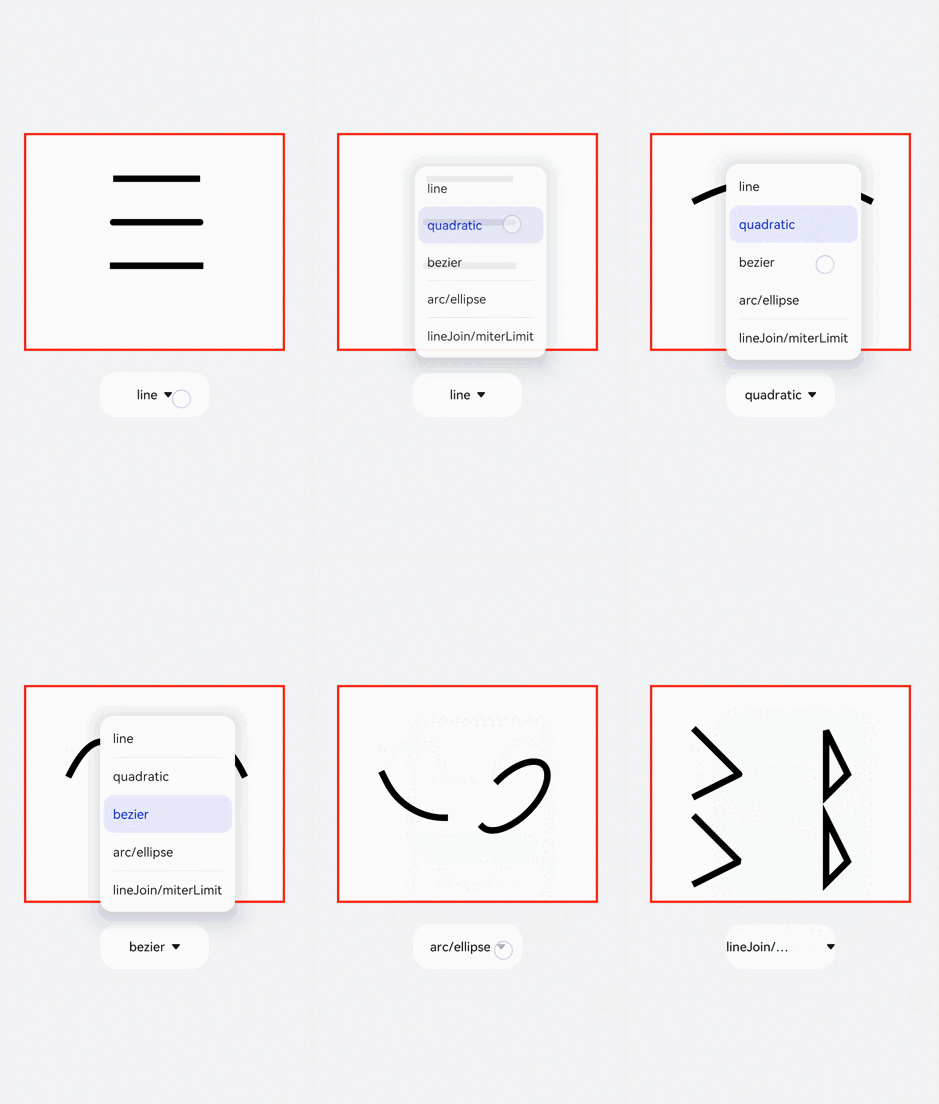
使用moveTo和lineTo画出一条线段,当使用closePath方法时会结束当前路径形成一个封闭图形。设置quadraticCurveTo(二次贝塞尔曲线)或bezierCurveTo(三次贝塞尔曲线)的值组成图形。
<!-- xxx.hml -->
<div class="container">
  <canvas ref="canvas1"></canvas>
  <select @change="change">
    <option value="value1"> line </option>
    <option value="value2"> quadratic </option>
    <option value="value3"> bezier </option>
    <option value="value4"> arc/ellipse </option>
    <option value="value5"> lineJoin/miterLimit </option>
  </select>
</div>
/* xxx.css */
.container {
    width: 100%;
    height: 100%;
    flex-direction: column;
    justify-content: center;
    align-items: center;
    background-color: #F1F3F5;
}

canvas {
    width: 600px;
    height: 500px;
    background-color: #fdfdfd;
    border: 5px solid red;
}

select {
    margin-top: 50px;
    width: 250px;
    height: 100px;
    background-color: white;
}
// xxx.js
export default {
    data: {
        el: null,
        ctx: null,
    },
    onShow() {
        this.el = this.$refs.canvas1;
        this.ctx = this.el.getContext("2d", { antialias: true });
        // 清除画布上的内容
        this.ctx.clearRect(0, 0, 600, 500);
        // 创建一个新的绘制路径
        this.ctx.beginPath();
        // 线端点以方形结束
        this.ctx.lineCap = 'butt';
        // 描边的宽度
        this.ctx.lineWidth = 15;
        // 创建一个新的绘制路径
        this.ctx.beginPath();
        // 路径从当前点移动到指定点
        this.ctx.moveTo(200, 100);
        // 从当前点到指定点进行路径连接
        this.ctx.lineTo(400, 100);
        // 边框绘制
        this.ctx.stroke();
        this.ctx.beginPath();
        // 线端点以圆形结束
        this.ctx.lineCap = 'round';
        this.ctx.moveTo(200, 200);
        this.ctx.lineTo(400, 200);
        this.ctx.stroke();
        // 线端点以方形结束
        this.ctx.beginPath();
        this.ctx.lineCap = 'square';
        this.ctx.moveTo(200, 300);
        this.ctx.lineTo(400, 300);
        this.ctx.stroke();
    },
    change(e) {
        if (e.newValue == 'value1') {
            this.el = this.$refs.canvas1;
            this.ctx = this.el.getContext("2d", { antialias: true });
            this.ctx.clearRect(0, 0, 600, 500);
            // 上
            this.ctx.beginPath();
            this.ctx.lineCap = 'butt';
            this.ctx.moveTo(200, 100);
            this.ctx.lineTo(400, 100);
            this.ctx.stroke();
            // 中
            this.ctx.beginPath();
            this.ctx.lineCap = 'round';
            this.ctx.moveTo(200, 200);
            this.ctx.lineTo(400, 200);
            this.ctx.stroke();
            // 下
            this.ctx.beginPath();
            this.ctx.lineCap = 'square';
            this.ctx.moveTo(200, 300);
            this.ctx.lineTo(400, 300);
            this.ctx.stroke();
        } else if (e.newValue == 'value2') {
            this.ctx.clearRect(0, 0, 600, 500);
            // 上
            this.ctx.beginPath();
            this.ctx.moveTo(100, 150);
            // 二次贝塞尔曲线的路径
            this.ctx.quadraticCurveTo(300, 50, 500, 150);
            this.ctx.stroke();
            // 左
            this.ctx.beginPath();
            this.ctx.moveTo(200, 150);
            this.ctx.quadraticCurveTo(250, 250, 250, 400);
            this.ctx.stroke();
            // 右
            this.ctx.beginPath();
            this.ctx.moveTo(400, 150);
            this.ctx.quadraticCurveTo(350, 250, 350, 400);
            this.ctx.stroke();
        } else if (e.newValue == 'value3') {
            this.ctx.clearRect(0, 0, 600, 500);
            // 下
            this.ctx.beginPath();
            this.ctx.moveTo(100, 200);
            // 三次贝塞尔曲线的路径
            this.ctx.bezierCurveTo(150, 100, 200, 100, 250, 200);
            this.ctx.stroke();
            // 左
            this.ctx.beginPath();
            this.ctx.moveTo(350, 200);
            this.ctx.bezierCurveTo(400, 100, 450, 100, 500, 200);
            this.ctx.stroke();
            // 右
            this.ctx.beginPath();
            this.ctx.moveTo(200, 350);
            this.ctx.bezierCurveTo(250, 500, 350, 500, 400, 350);
            this.ctx.stroke();
        } else if (e.newValue == 'value4') {
            this.ctx.clearRect(0, 0, 600, 500);
            this.ctx.beginPath();
            this.ctx.moveTo(100, 200);
            // 弧线
            this.ctx.arcTo(150, 300, 350, 300, 150);
            this.ctx.stroke();
            this.ctx.beginPath();
            // 椭圆
            this.ctx.ellipse(400, 250, 50, 100, Math.PI * 0.25, Math.PI * 0.5, Math.PI, 1);
            this.ctx.stroke();
        } else if (e.newValue == 'value5') {
            this.ctx.clearRect(0, 0, 600, 500);
            // 左上
            this.ctx.beginPath();
            // 在线段相连处绘制一个扇形
            this.ctx.lineJoin = 'round';
            this.ctx.moveTo(100, 100);
            this.ctx.lineTo(200, 200);
            this.ctx.lineTo(100, 250);
            this.ctx.stroke();
            // 左下
            this.ctx.beginPath();
            // 在线段相连处使用三角形为底填充
            this.ctx.lineJoin = 'bevel';
            this.ctx.moveTo(100, 300);
            this.ctx.lineTo(200, 400);
            this.ctx.lineTo(100, 450);
            this.ctx.stroke();
            // 右上
            this.ctx.beginPath();
            //线条相交处内角和外角的距离
            this.ctx.lineJoin = 'miter';
            this.ctx.miterLimit = 3;
            this.ctx.moveTo(400, 100);
            this.ctx.lineTo(450, 200);
            this.ctx.lineTo(400, 250);
            // 结束当前路径形成一个封闭路径
            this.ctx.closePath();
            this.ctx.stroke();
            // 右下
            this.ctx.beginPath();
            this.ctx.lineJoin = 'miter';
            this.ctx.miterLimit = 10;
            this.ctx.moveTo(400, 300);
            this.ctx.lineTo(450, 400);
            this.ctx.lineTo(400, 450);
            this.ctx.closePath();
            this.ctx.stroke();
        }
    },
}
画边框
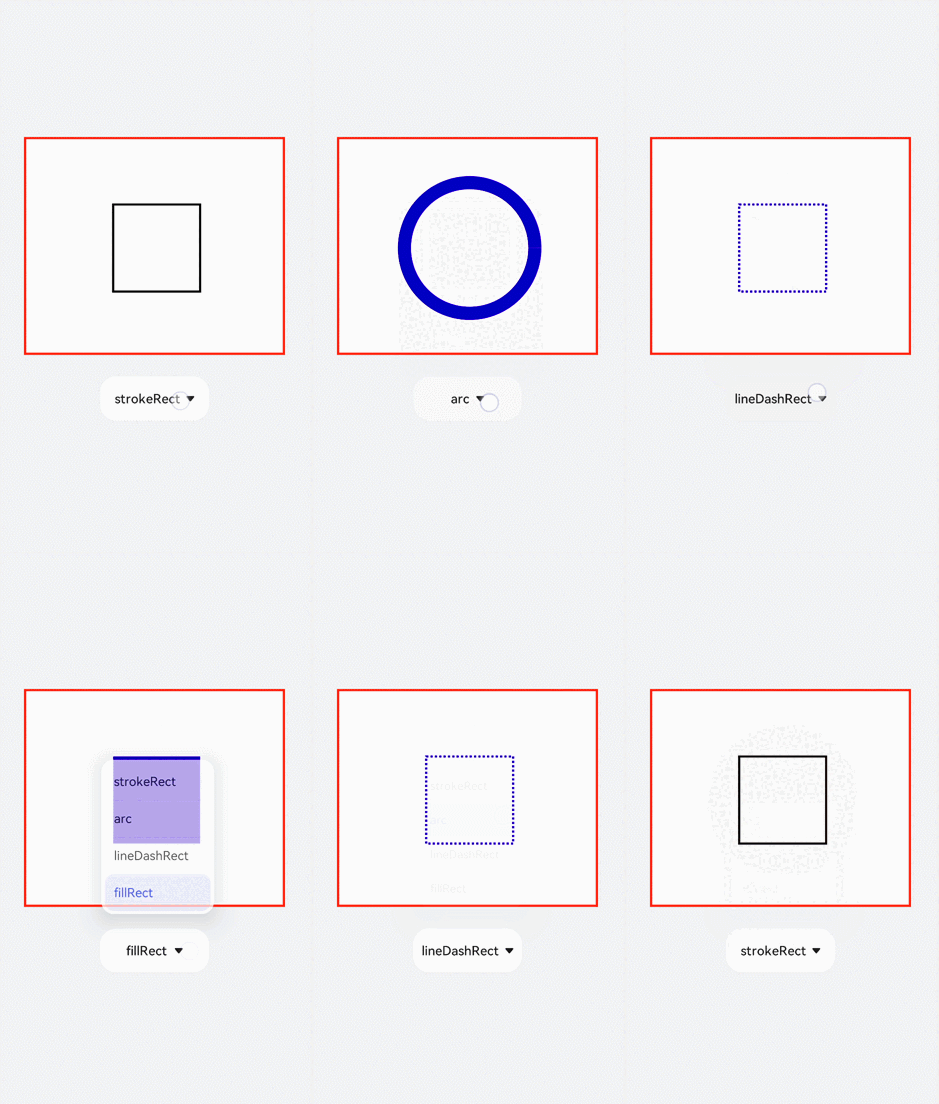
全局定义画布(el)及画笔(ctx),初始化创建一个边框宽度为5的长方形。对边框的宽度(lineWidth)、颜色(strokeStyle)、虚化程度(setLineDash)进行改变,选用select组件添加change事件,下拉选择时触发change事件后画出改变后的图形。
<!-- xxx.hml -->
<div class="container">
  <canvas ref="canvas1"></canvas>
  <select @change="change">
    <option value="value1">strokeRect</option>
    <option value="value2">arc</option>
    <option value="value3">lineDashRect</option>
    <option value="value4">fillRect</option>
  </select>
</div>
/* xxx.css */
.container {
    width: 100%;
    height: 100%;
    flex-direction: column;
    justify-content: center;
    align-items: center;
    background-color: #F1F3F5;
    display: flex;
}

canvas {
    width: 600px;
    height: 500px;
    background-color: #fdfdfd;
    border: 5px solid red;
}

select {
    margin-top: 50px;
    width: 250px;
    height: 100px;
    background-color: white;
}
// xxx.js
export default {
    data: {
        el: null,
        ctx: null,
    },
    onShow() {
        this.el = this.$refs.canvas1;
        this.ctx = this.el.getContext("2d", { antialias: true });
        this.ctx.lineWidth = 5;
        this.ctx.strokeRect(200, 150, 200, 200);
    },
    change(e) {
        if (e.newValue == 'value1') {
            // 清除画布上的内容
            this.ctx.clearRect(0, 0, 600, 500);
            // 边框宽度
            this.ctx.lineWidth = 5;
            // 边框颜色
            this.ctx.strokeStyle = '#110000';
            // 边框的虚化程度
            this.ctx.setLineDash([0, 0]);
            // 画具有边框的矩形
            this.ctx.strokeRect(200, 150, 200, 200);
        } else if (e.newValue == 'value2') {
            this.ctx.clearRect(0, 0, 600, 500);
            this.ctx.lineWidth = 30;
            this.ctx.strokeStyle = '#0000ff';
            this.ctx.setLineDash([0, 0]);
            // 画圆
            this.ctx.arc(300, 250, 150, 0, 6.28);
            //进行边框绘制
            this.ctx.stroke();
        } else if (e.newValue == 'value3') {
            this.ctx.clearRect(0, 0, 600, 500);
            this.ctx.lineWidth = 5;
            this.ctx.setLineDash([5, 5]);
            this.ctx.strokeRect(200, 150, 200, 200);
        } else if (e.newValue == 'value4') {
            this.ctx.clearRect(0, 0, 600, 500);
            // 画一个有填充颜色的矩形
            this.ctx.fillStyle = '#0000ff';
            this.ctx.fillRect(200, 150, 200, 200);
        }
    },
}
填充渐变色
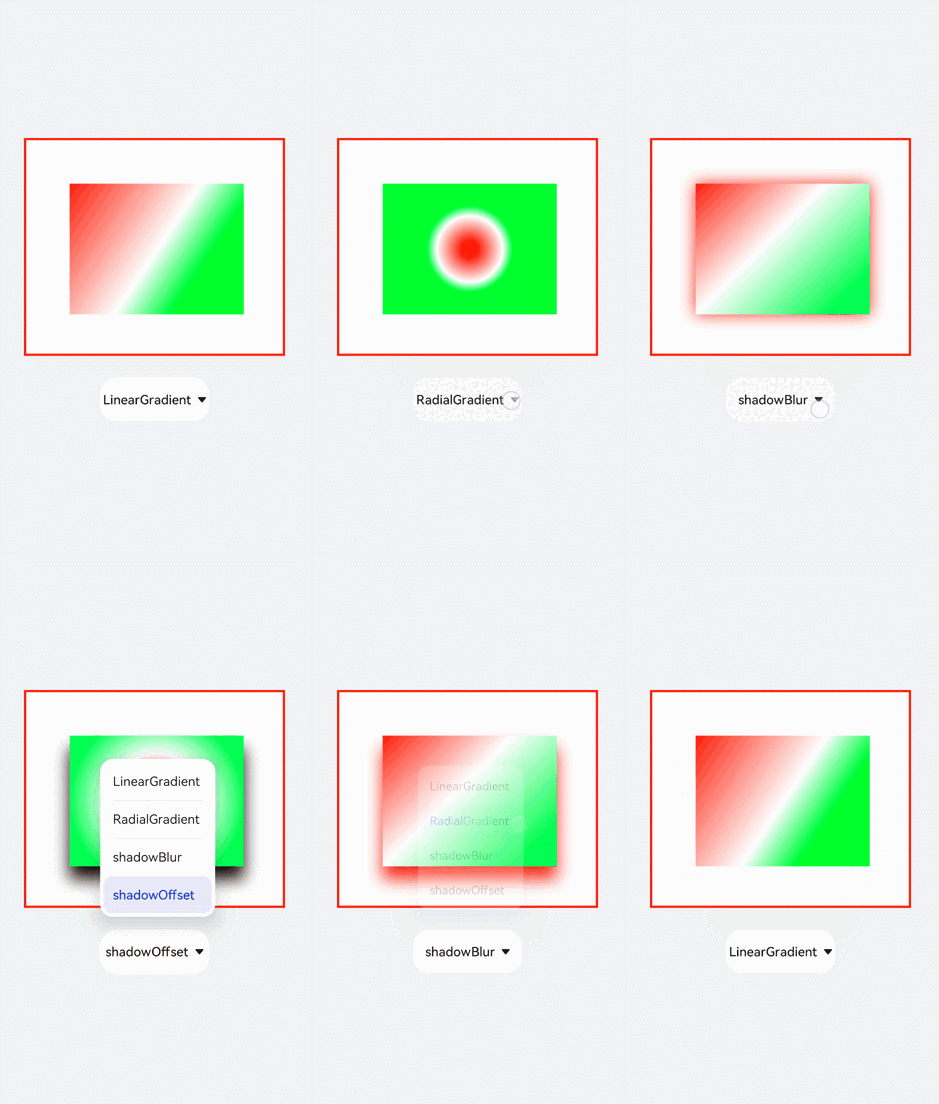
添加createLinearGradient和createRadialGradient属性创建渐变容器,接着用addColorStop方法添加多个色块组成渐变色,再设置fillStyle为gradient将渐变色填充到矩形中,最后设置阴影的模糊级别(shadowBlur)、阴影颜色(shadowColor)及阴影偏移量(shadowOffset)。
<!-- xxx.hml -->
<div class="container">
  <canvas ref="canvas1"></canvas>
  <select @change="change">
    <option value="value1">LinearGradient</option>
    <option value="value2">RadialGradient</option>
    <option value="value3">shadowBlur</option>
    <option value="value4">shadowOffset</option>
  </select>
</div>
/* xxx.css */
.container {
    width: 100%;
    height: 100%;
    flex-direction: column;
    justify-content: center;
    align-items: center;
    background-color: #F1F3F5;
    display: flex;
}

canvas {
    width: 600px;
    height: 500px;
    background-color: #fdfdfd;
    border: 5px solid red;
}

select {
    margin-top: 50px;
    width: 250px;
    height: 100px;
    background-color: white;
}
// xxx.js
export default {
    data: {
        el: null,
        ctx: null,
    },
    onShow() {
        this.el = this.$refs.canvas1;
        this.ctx = this.el.getContext("2d", { antialias: true });
        // 创建一个线性渐变色
        let gradient = this.ctx.createLinearGradient(100, 100, 400, 300);
        // 添加渐变颜色
        gradient.addColorStop(0.0, 'red');
        gradient.addColorStop(0.7, 'white');
        gradient.addColorStop(1.0, 'green');
        // 填充颜色为渐变色
        this.ctx.fillStyle = gradient;
        this.ctx.fillRect(100, 100, 400, 300);
    },
    change(e) {
        if (e.newValue == 'value1') {
            // 清除画布上的内容
            this.ctx.clearRect(0, 0, 600, 500);
            let gradient = this.ctx.createLinearGradient(100, 100, 400, 300);
            gradient.addColorStop(0.0, 'red');
            gradient.addColorStop(0.7, 'white');
            gradient.addColorStop(1.0, 'green');
            this.ctx.fillStyle = gradient;
            // 设置绘制阴影时的模糊级别
            this.ctx.shadowBlur = 0;
            // 绘制阴影时和原有对象的垂直偏移值
            this.ctx.shadowOffsetY = 0;
            // 绘制阴影时和原有对象的水平偏移值
            this.ctx.shadowOffsetX = 0;
            this.ctx.fillRect(100, 100, 400, 300);
        } else if (e.newValue == 'value2') {
            this.ctx.clearRect(0, 0, 600, 500);
            // 创建一个径向渐变色
            let gradient = this.ctx.createRadialGradient(300, 250, 20, 300, 250, 100);
            gradient.addColorStop(0.0, 'red');
            gradient.addColorStop(0.7, 'white');
            gradient.addColorStop(1.0, 'green');
            this.ctx.shadowBlur = 0;
            this.ctx.shadowOffsetY = 0;
            this.ctx.shadowOffsetX = 0;
            this.ctx.fillStyle = gradient;
            this.ctx.fillRect(100, 100, 400, 300);
        } else if (e.newValue == 'value3') {
            this.ctx.clearRect(0, 0, 600, 500);
            let gradient = this.ctx.createLinearGradient(100, 100, 400, 400);
            gradient.addColorStop(0.0, 'red');
            gradient.addColorStop(0.5, 'white');
            gradient.addColorStop(1, '#17ea35');
            // 设置绘制阴影时的模糊级别
            this.ctx.shadowBlur = 30;
            // 绘制阴影时的阴影颜色
            this.ctx.shadowColor = 'rgb(229, 16, 16)';
            this.ctx.fillStyle = gradient;
            this.ctx.fillRect(100, 100, 400, 300);
        } else if (e.newValue == 'value4') {
            this.ctx.clearRect(0, 0, 600, 500);
            this.ctx.clearRect(0, 0, 600, 500);
            let gradient = this.ctx.createRadialGradient(300, 250, 20, 300, 250, 200);
            gradient.addColorStop(0.0, 'red');
            gradient.addColorStop(0.5, 'white');
            gradient.addColorStop(1, '#17ea35');
            // 设置绘制阴影时的模糊级别
            this.ctx.shadowBlur = 30;
            this.ctx.shadowOffsetY = 30;
            // 绘制阴影时的阴影颜色
            this.ctx.shadowColor = 'rgb(23, 1, 1)';
            this.ctx.fillStyle = gradient;
            this.ctx.fillRect(100, 100, 400, 300);
        }
    },
}
填充文字
先创建文本,再用fillText方法把文字写在画布上。通过globalAlpha属性改变基线透明度,使基线不会挡住文字,再设置textAlign和textBaseline属性确定文字基于基线的位置。
<!-- xxx.hml -->
<div class="container">
  <canvas ref="canvas1"></canvas>
  <select @change="change">
    <option value="value1">text</option>
    <option value="value2">textBaseline</option>
    <option value="value3">textAlign</option>
  </select>
</div>
/* xxx.css */
.container {
    width: 100%;
    height: 100%;
    flex-direction: column;
    justify-content: center;
    align-items: center;
    background-color: #F1F3F5;
}

canvas {
    width: 600px;
    height: 500px;
    background-color: #fdfdfd;
    border: 5px solid red;
}

select {
    margin-top: 50px;
    width: 250px;
    height: 100px;
    background-color: white;
}
// xxx.js
export default {
    data: {
        el: null,
        ctx: null,
    },
    onShow() {
        this.el = this.$refs.canvas1;
        this.ctx = this.el.getContext("2d", { antialias: true });
        // 创建文本
        let text = "Hello World";
        // 设置字体
        this.ctx.font = '30px';
        this.ctx.fillText("with:" + this.ctx.measureText(text).width, 200, 300);
        // 填充字体文本
        this.ctx.fillText(text, 200, 250);
    },
    change(e) {
        if (e.newValue == 'value1') {
            // 清除画布上的内容
            this.ctx.clearRect(0, 0, 600, 500);
            // 开始新的路径
            this.ctx.beginPath();
            // 初始化textAlign值
            this.ctx.textAlign = 'left';
            // 初始化textBaseline
            this.ctx.textBaseline = 'alphabetic';
            // 设置字体
            this.ctx.font = '30px Arial';
            let text = "Hello World";
            // 获取字体width
            this.ctx.fillText("with:" + this.ctx.measureText(text).width, 200, 300);
            // 填充字体文本
            this.ctx.fillText(text, 200, 250);
        } else if (e.newValue == 'value2') {
            this.ctx.clearRect(0, 0, 600, 500);
            this.ctx.beginPath();
            // 设置透明度
            this.ctx.globalAlpha = 0.1;
            // 设置线宽度
            this.ctx.lineWidth = 10;
            // 设置线段颜色
            this.ctx.strokeStyle = '#0000ff';
            // 从当前点移动到指定点
            this.ctx.moveTo(0, 240);
            // 当前点到指定点进行路径连接
            this.ctx.lineTo(600, 240);
            this.ctx.stroke();
            this.ctx.font = '35px';
            this.ctx.globalAlpha = 1;
            // 初始化textAlign值
            this.ctx.textAlign = 'left';
            // 设置textBaseline
            this.ctx.textBaseline = 'top';
            this.ctx.fillText('Top', 50, 240);
            this.ctx.textBaseline = 'bottom';
            this.ctx.fillText('Bottom', 200, 240);
            this.ctx.textBaseline = 'middle';
            this.ctx.fillText('Middle', 400, 240);
        } else if (e.newValue == 'value3') {
            // 清除画布上的内容
            this.ctx.clearRect(0, 0, 600, 500);
            this.ctx.beginPath();
            this.ctx.globalAlpha = 0.1;
            this.ctx.lineWidth = 10;
            this.ctx.strokeStyle = '#0000ff';
            this.ctx.moveTo(300, 0);
            this.ctx.lineTo(300, 500);
            this.ctx.stroke();
            this.ctx.font = '35px';
            this.ctx.globalAlpha = 1;
            // 初始化 textBaseline
            this.ctx.textBaseline = 'alphabetic';
            // 设置textAlign
            this.ctx.textAlign = 'left';
            this.ctx.fillText('textAlign=left', 300, 100);
            this.ctx.textAlign = 'center';
            this.ctx.fillText('textAlign=center', 300, 250);
            this.ctx.textAlign = 'right';
            this.ctx.fillText('textAlign=right', 300, 400);
        }
    }
}
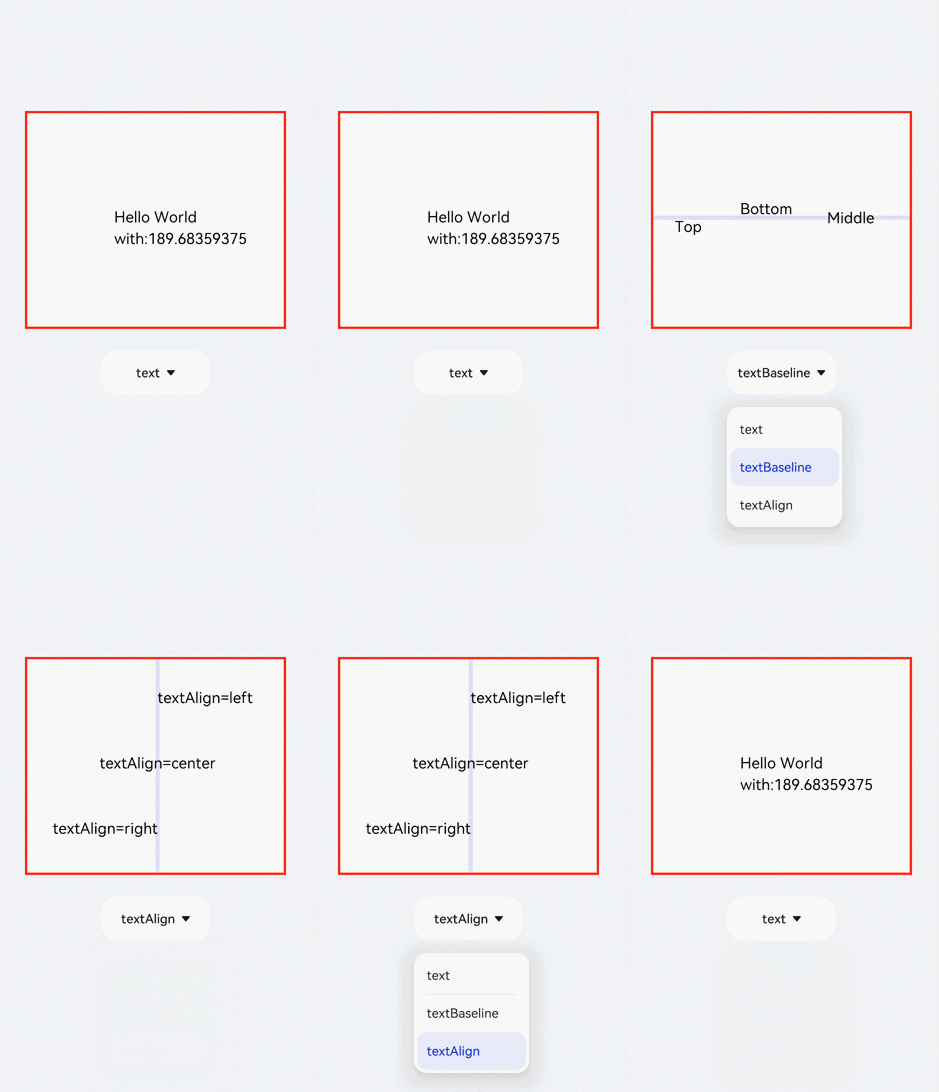

ltr布局模式下start和left一致,rtl布局模式下start和right一致。
添加图片
创建图片对象后使用drawImage方法画出图片,给图片设置一些动画样式如scale(缩放)、translate(平移)或rotate(旋转)。
<!-- xxx.hml -->
<div class="container">
  <div class="content">
    <canvas ref="canvas0"></canvas>
    <text onclick="change">change</text>
    <canvas ref="canvas1"></canvas>
    <text onclick="rotate">rotate</text>
    <canvas ref="canvas2"></canvas>
    <text onclick="scale">scale</text>
    <canvas ref="canvas3"></canvas>
    <text onclick="translate" style="width: 300px;">translate</text>
    <canvas ref="canvas4"></canvas>
    <text onclick="transform" style="width: 300px;">transform</text>
    <canvas ref="canvas5"></canvas>
    <text onclick="setTransform" style="width: 300px;">setTransform</text>
    <canvas ref="canvas6"></canvas>
  </div>
</div>
/* xxx.css */
.container {
    width: 100%;
    flex-direction: column;
    background-color: #F1F3F5;
    align-items: center;
}

canvas {
    width: 600px;
    height: 300px;
    margin-bottom: 100px;
    background-color: #fdfdfd;
    border: 5px solid red;
}

.content {
    width: 80%;
    margin-top: 50px;
    margin-bottom: 50px;
    display: flex;
    flex-wrap: wrap;
    justify-content: space-around;
}

text {
    font-size: 35px;
    width: 200px;
    height: 80px;
    color: white;
    border-radius: 20px;
    text-align: center;
    background-color: #6060e7;
    margin-bottom: 30px;
}
// xxx.js
import promptAction from '@ohos.promptAction';

export default {
    data: {
        compositeOperation: 'source-over'
    },
    onShow() {
        let ctx = this.$refs.canvas0.getContext('2d');
        // 创建图片对象
        let img = new Image();
        // 设置图片路径
        // "common/images/2.png"需要替换为开发者所需的图像资源文件
        img.src = 'common/images/2.png';
        // 设置图片宽度
        img.width = 150;
        // 设置图片高度
        img.height = 150;
        // 图片平铺容器
        var pat = ctx.createPattern(img, 'repeat');
        ctx.fillStyle = pat;
        ctx.fillRect(0, 0, 600, 300);
    },
    change() {
        // 创建画布后得到画笔
        let ctx = this.$refs.canvas1.getContext('2d');
        ctx.clearRect(0, 0, 600, 1000);
        if (this.compositeOperation == 'source-over') {
            this.compositeOperation = 'destination-over';
        } else {
            this.compositeOperation = 'source-over';
        }
        ctx.globalCompositeOperation = this.compositeOperation;
        let img = new Image();
        img.src = 'common/images/2.png';
        // 图片成功获取触发方法
        img.onload = function () {
            ctx.drawImage(img, 150, 20, 200, 200);
        };
        let img1 = new Image();
        // "common/images/3.png"需要替换为开发者所需的图像资源文件
        img1.src = 'common/images/3.png';
        img1.onload = function () {
            // 画上图片
            ctx.drawImage(img1, 250, 80, 200, 200);
        };
        // 图片获取失败触发方法
        img1.onerror = function () {
            promptAction.showToast({ message: 'error', duration: 2000 })
        };
    },
    rotate() {
        let ctx = this.$refs.canvas2.getContext('2d');
        ctx.clearRect(0, 0, 600, 300);
        // 旋转
        ctx.rotate(10 * Math.PI / 180);
        let img = new Image();
        img.src = 'common/images/2.png';
        img.onload = function () {
            ctx.drawImage(img, 300, 0, 100, 100);
        };
    },
    scale() {
        let ctx = this.$refs.canvas3.getContext('2d');
        ctx.clearRect(0, 0, 600, 200);
        // 缩放
        ctx.scale(1.3, 1.2);
        let img = new Image();
        img.src = 'common/images/2.png';
        img.onload = function () {
            ctx.drawImage(img, 0, 0, 50, 50);
        };
    },
    translate() {
        let ctx = this.$refs.canvas4.getContext('2d');
        ctx.clearRect(0, 0, 600, 300);
        ctx.translate(10, 0);
        let img = new Image();
        img.src = 'common/images/2.png';
        img.onload = function () {
            ctx.drawImage(img, 0, 50, 300, 200);
        };
    },
    transform() {
        let ctx = this.$refs.canvas5.getContext('2d');
        ctx.clearRect(0, 0, 600, 300);
        ctx.transform(1.1, 0.1, 0.1, 1, 10, 0);
        let img = new Image();
        img.src = 'common/images/2.png';
        img.onload = function () {
            ctx.drawImage(img, 0, 50, 100, 100);
        };
    },
    setTransform() {
        let ctx = this.$refs.canvas6.getContext('2d');
        ctx.clearRect(0, 0, 600, 300);
        ctx.setTransform(1.1, 0.1, 0.1, 1, 10, 0);
        let img = new Image();
        img.src = 'common/images/2.png';
        img.onload = function () {
            ctx.drawImage(img, 0, 50, 100, 100);
        };
    },
}
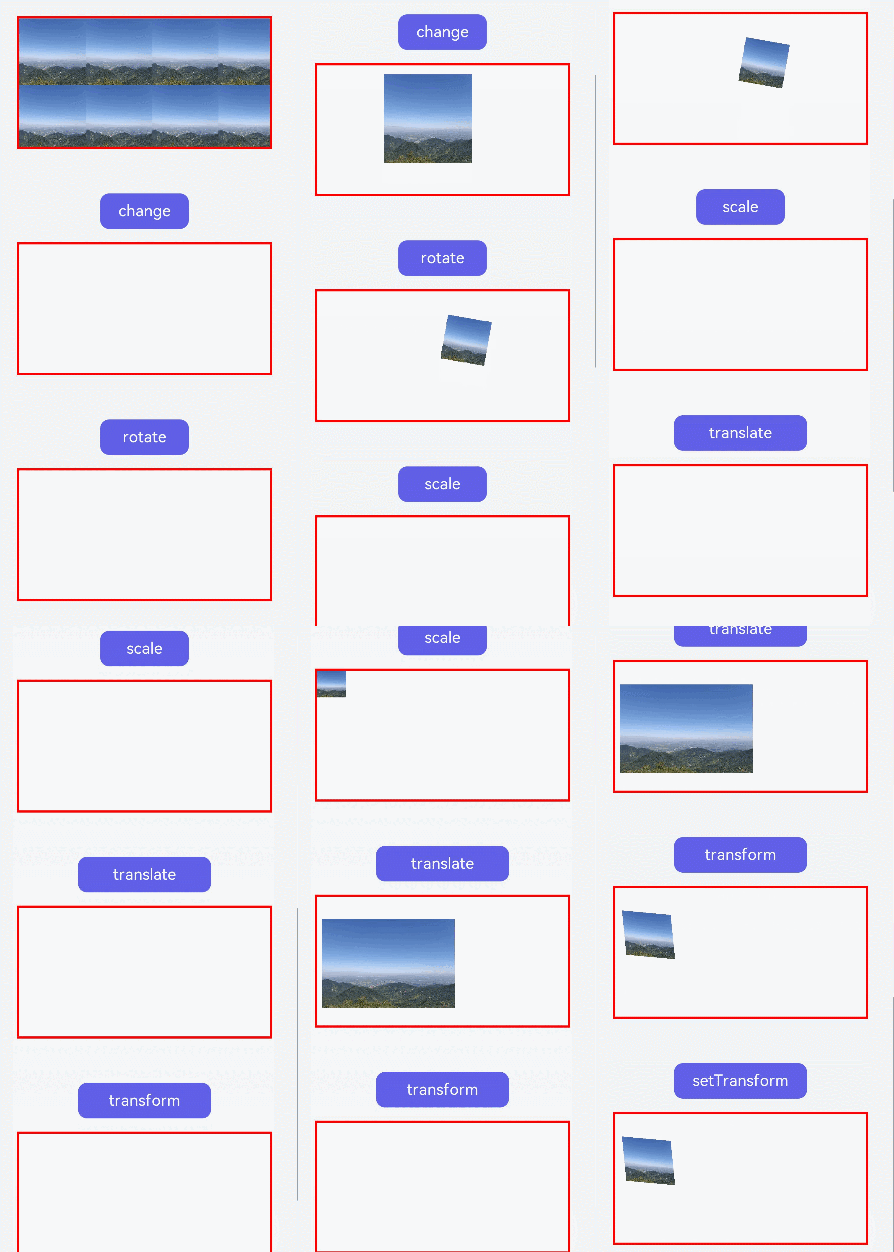
-
setTransform方法使用的参数和transform()方法相同,但setTransform()方法会重置现有的变换矩阵并创建新的变换矩阵。
-
变换后的坐标计算方式(x和y为变换前坐标,x'和y'为变换后坐标):
x' = scaleX * x + skewY * y + translateX
y' = skewX * x + scaleY * y + translateY
添加方法
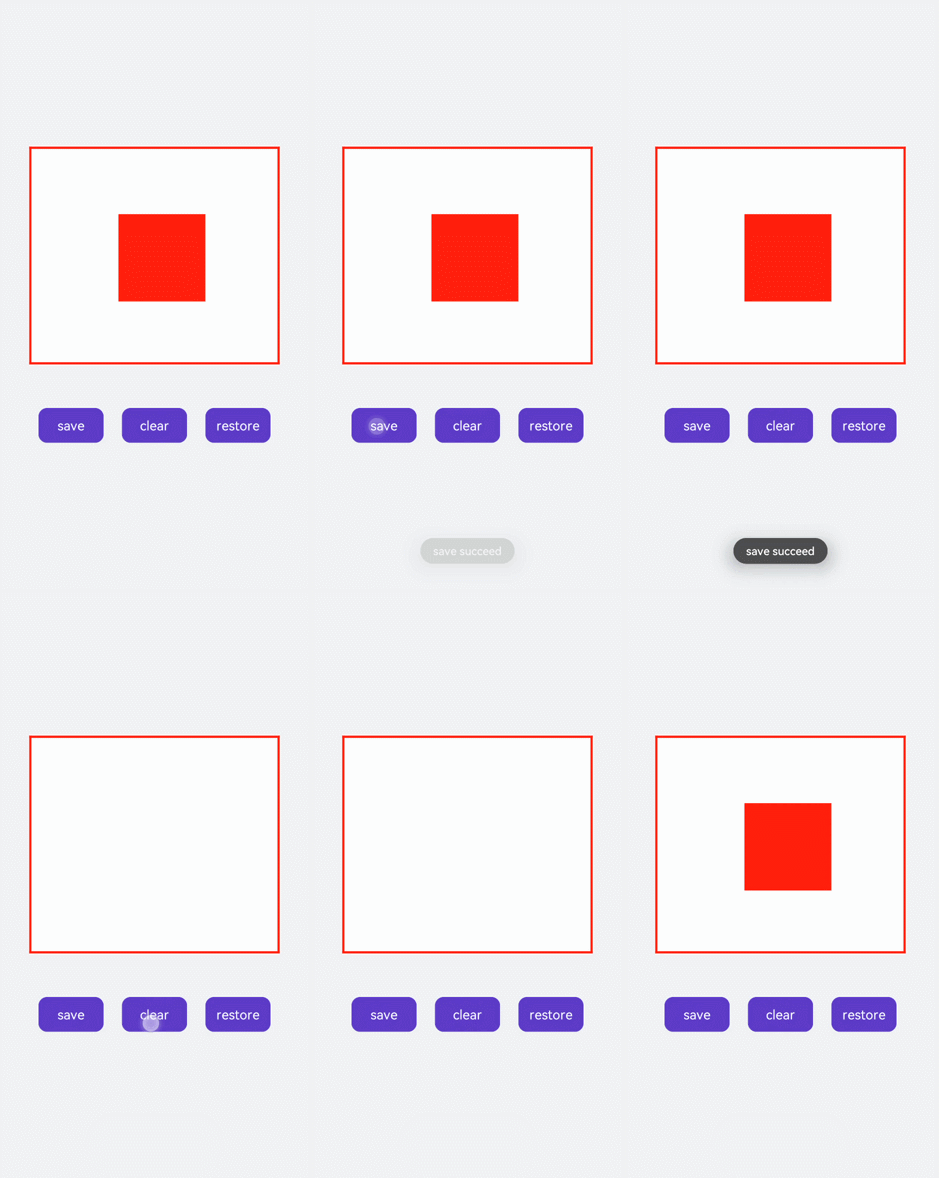
save方法可对画笔样式进行存储,restore可对存储的画笔进行恢复。如下面的示例,先设置画笔为红色,在保存画笔后对画布进行清除并改变画笔为蓝色,当我们直接使用画笔时会画出一个蓝色矩形,对存储的画笔进行恢复后就可画出红色矩形。
<!-- xxx.hml -->
<div class="container">
  <div class="content">
    <canvas ref="canvas"></canvas>
  </div>
  <div class="content">
    <text onclick="save">save</text>
    <text onclick="clear">clear</text>
    <text onclick="restore">restore</text>
  </div>
</div>
/* xxx.css */
.container {
    width: 100%;
    height: 100%;
    flex-direction: column;
    background-color: #F1F3F5;
    align-items: center;
}

canvas {
    margin-top: 300px;
    width: 600px;
    height: 500px;
    background-color: #fdfdfd;
    border: 5px solid red;
}

.content {
    width: 80%;
    margin-top: 50px;
    margin-bottom: 50px;
    display: flex;
    flex-wrap: wrap;
    justify-content: space-around;
}

text {
    width: 150px;
    height: 80px;
    color: white;
    border-radius: 20px;
    text-align: center;
    background-color: #6060e7;
    margin-bottom: 30px;
}
// xxx.js
import promptAction from '@ohos.promptAction';

export default {
    data: {
        ctx: '',
    },
    onShow() {
        this.ctx = this.$refs.canvas.getContext('2d');
        this.ctx.fillStyle = 'red';
        this.ctx.fillRect(200, 150, 200, 200);
    },
    save() {
        // 画笔储存
        this.ctx.save();
        promptAction.showToast({ message: 'save succeed' });
    },
    clear() {
        this.ctx.clearRect(0, 0, 600, 500);
        // 改变画笔颜色
        this.ctx.fillStyle = '#2133d2';
    },
    restore() {
        this.ctx.beginPath();
        // 画笔恢复
        this.ctx.restore();
        this.ctx.fillRect(200, 150, 200, 200);
    },
}