创建轮播 (Swiper)
Swiper组件提供滑动轮播显示的能力。Swiper本身是一个容器组件,当设置了多个子组件后,可以对这些子组件进行轮播显示。通常,在一些应用首页显示推荐的内容时,需要用到轮播显示的能力。
针对复杂页面场景,可以使用Swiper组件的预加载机制,利用主线程的空闲时间来提前构建和布局绘制组件,优化滑动体验。
布局与约束
Swiper作为一个容器组件,如果设置了自身尺寸属性,则在轮播显示过程中均以该尺寸生效。如果自身尺寸属性未被设置,则分两种情况:如果设置了prevMargin或者nextMargin属性,则Swiper自身尺寸会跟随其父组件;如果未设置prevMargin或者nextMargin属性,则会自动根据子组件的大小设置自身的尺寸。
循环播放
通过loop属性控制是否循环播放,该属性默认值为true。
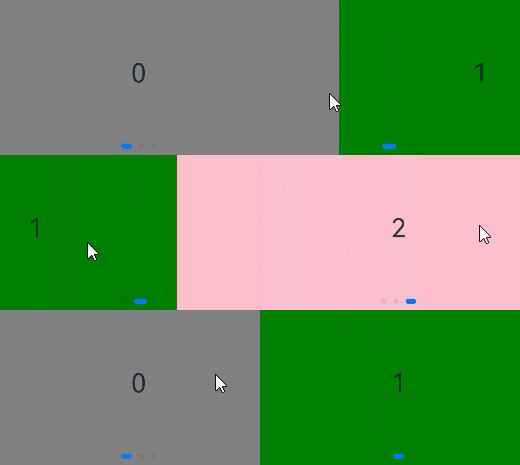
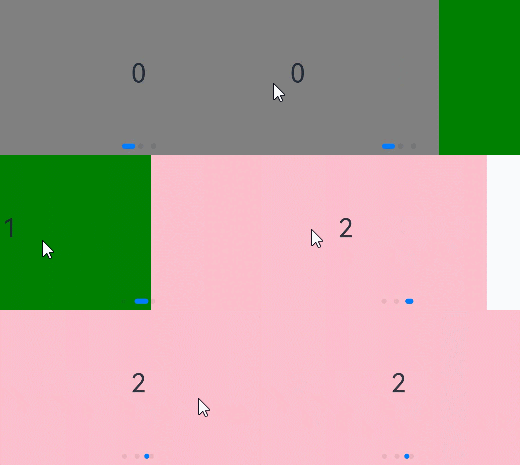
当loop为true时,在显示第一页或最后一页时,可以继续往前切换到前一页或者往后切换到后一页。如果loop为false,则在第一页或最后一页时,无法继续向前或者向后切换页面。
- loop为true
  Swiper() {
    Text('0')
      .width('90%')
      .height('100%')
      .backgroundColor(Color.Gray)
      .textAlign(TextAlign.Center)
      .fontSize(30)

    Text('1')
      .width('90%')
      .height('100%')
      .backgroundColor(Color.Green)
      .textAlign(TextAlign.Center)
      .fontSize(30)

    Text('2')
      .width('90%')
      .height('100%')
      .backgroundColor(Color.Pink)
      .textAlign(TextAlign.Center)
      .fontSize(30)
  }
// ···
  .loop(true)
- loop为false
  Swiper() {
    // ···
  }
// ···
  .loop(false)
自动轮播
Swiper通过设置autoPlay属性,控制是否自动轮播子组件。该属性默认值为false。
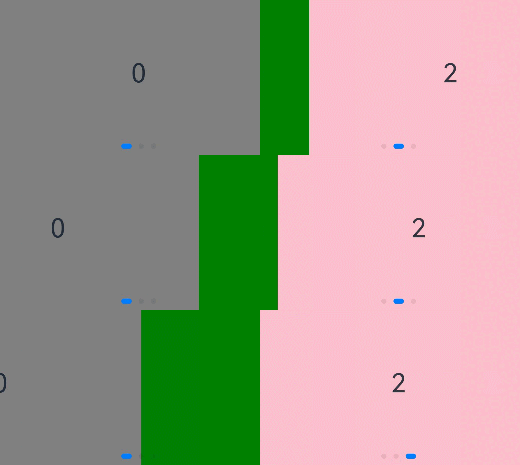
autoPlay为true时,会自动切换播放子组件,子组件与子组件之间的播放间隔通过interval属性设置。interval属性默认值为3000,单位毫秒。
  Swiper() {
    // ···
  }
// ···
  .loop(true)
  .autoPlay(true)
  .interval(1000)
导航点样式
Swiper提供了默认的导航点样式和导航点箭头样式,导航点默认显示在Swiper下方居中位置,开发者也可以通过indicator属性自定义导航点的位置和样式,导航点箭头默认不显示。
通过indicator属性,开发者可以设置导航点相对于Swiper组件上下左右四个方位的位置,同时也可以设置每个导航点的尺寸、颜色、蒙层和被选中导航点的颜色。
- 导航点使用默认样式
Swiper() {
  Text('0')
    .width('90%')
    .height('100%')
    .backgroundColor(Color.Gray)
    .textAlign(TextAlign.Center)
    .fontSize(30)

  Text('1')
    .width('90%')
    .height('100%')
    .backgroundColor(Color.Green)
    .textAlign(TextAlign.Center)
    .fontSize(30)

  Text('2')
    .width('90%')
    .height('100%')
    .backgroundColor(Color.Pink)
    .textAlign(TextAlign.Center)
    .fontSize(30)
}

- 自定义导航点样式
选中的导航点,直径设为30vp,且颜色为蓝色;未选中的导航点,直径设为15vp,颜色设为红色。
  Swiper() {
    // ···
  }
// ···
  .indicator(
    Indicator.dot()
      .left(0)
      .itemWidth(15)
      .itemHeight(15)
      .selectedItemWidth(30)
      .selectedItemHeight(15)
      .color(Color.Red)
      .selectedColor(Color.Blue)
  )

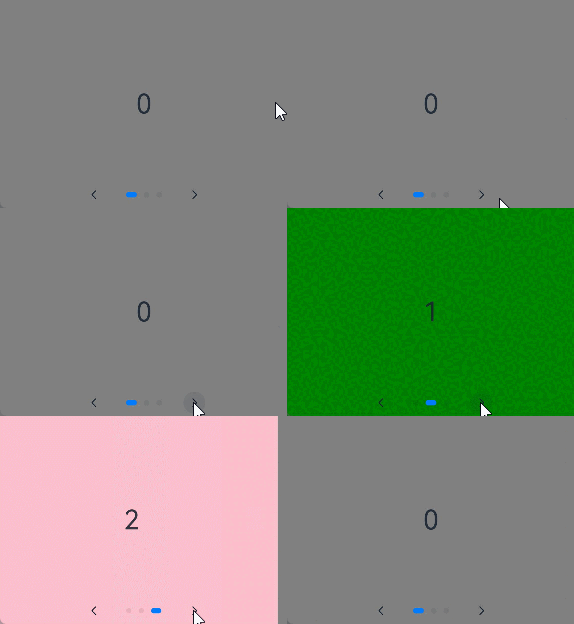
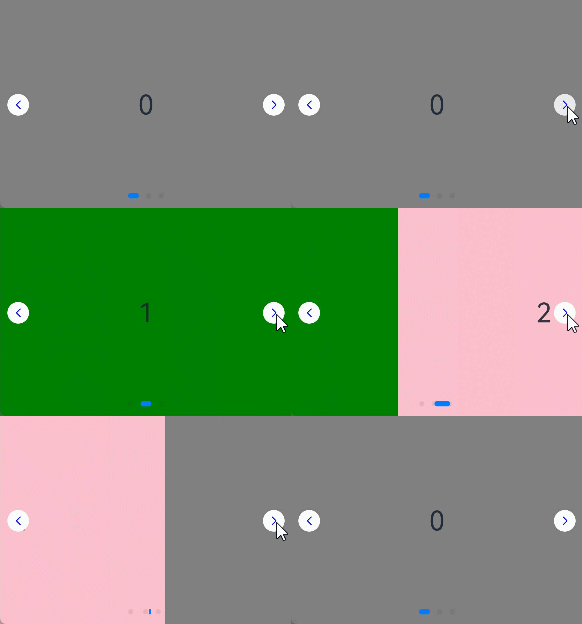
Swiper通过设置displayArrow属性,可以控制导航点箭头的大小、位置、颜色,底板的大小及颜色,以及鼠标悬停时是否显示箭头。
- 箭头使用默认样式
  Swiper() {
    // ···
  }
// ···
  .displayArrow(true, false)
- 自定义箭头样式
箭头显示在组件两侧,大小为18vp,导航点箭头颜色设为蓝色。
  Swiper() {
    // ···
  }
// ···
  .displayArrow({
    showBackground: true,
    isSidebarMiddle: true,
    backgroundSize: 24,
    backgroundColor: Color.White,
    arrowSize: 18,
    arrowColor: Color.Blue
  }, false)
页面切换方式
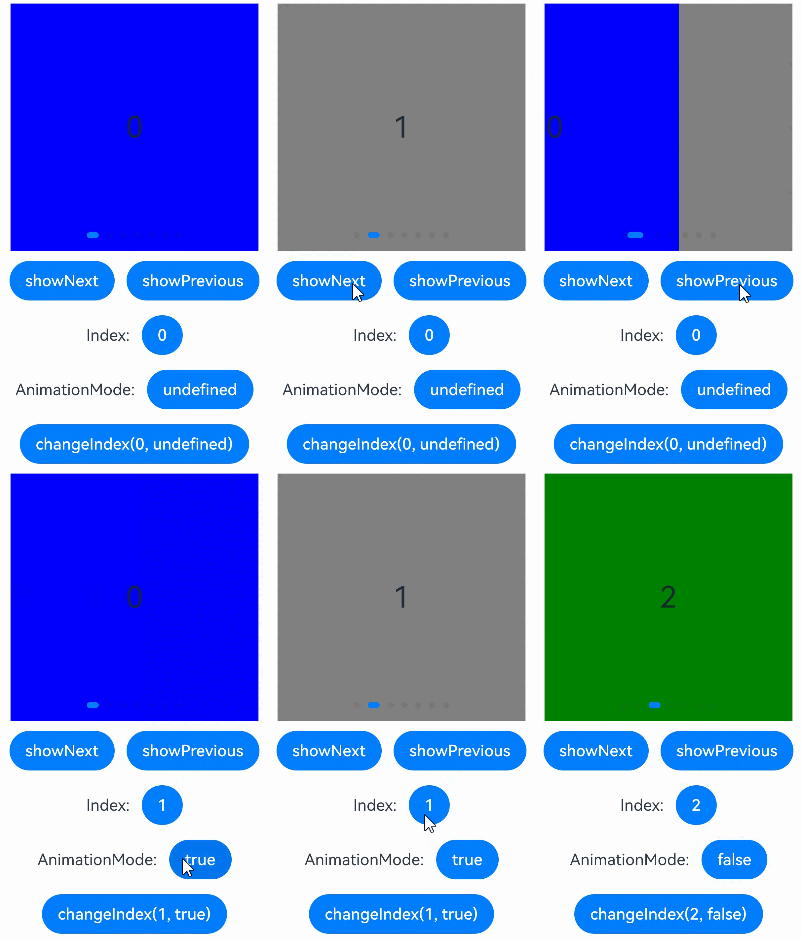
Swiper支持手指滑动、点击导航点和通过控制器三种方式切换页面,以下示例展示通过控制器切换页面的方法。
// 如需作为页面入口,请取消@Entry的注释并删除export关键字
// @Entry
@Component
export struct SwiperPageSwitchMethod {
  private swiperBackgroundColors: Color[] = [Color.Blue, Color.Brown, Color.Gray, Color.Green, Color.Orange,
    Color.Pink, Color.Red, Color.Yellow];
  private swiperAnimationMode: (SwiperAnimationMode | boolean | undefined)[] = [undefined, true, false,
    SwiperAnimationMode.NO_ANIMATION, SwiperAnimationMode.DEFAULT_ANIMATION, SwiperAnimationMode.FAST_ANIMATION];
  private swiperController: SwiperController = new SwiperController();
  private animationModeIndex: number = 0;
  private animationMode: (SwiperAnimationMode | boolean | undefined) = undefined;
  @State animationModeStr: string = 'undefined';
  @State targetIndex: number = 0;

  aboutToAppear(): void {
    this.toSwiperAnimationModeStr();
  }

  build() {
    // ...
          Column({ space: 5 }) {
            Swiper(this.swiperController) {
              ForEach(this.swiperBackgroundColors, (backgroundColor: Color, index: number) => {
                Text(index.toString())
                  .width(250)
                  .height(250)
                  .backgroundColor(backgroundColor)
                  .textAlign(TextAlign.Center)
                  .fontSize(30)
              })
            }
            // ...
            .indicator(true)

            Row({ space: 12 }) {
              Button('showNext')
                .onClick(() => {
                  this.swiperController.showNext(); // 通过controller切换到后一页
                })
              Button('showPrevious')
                .onClick(() => {
                  this.swiperController.showPrevious(); // 通过controller切换到前一页
                })
            }.margin(5)

            Row({ space: 12 }) {
              Text('Index:')
              Button(this.targetIndex.toString())
                .onClick(() => {
                  this.targetIndex = (this.targetIndex + 1) % this.swiperBackgroundColors.length;
                })
            }.margin(5)
            Row({ space: 12 }) {
              Text('AnimationMode:')
              Button(this.animationModeStr)
                .onClick(() => {
                  this.animationModeIndex = (this.animationModeIndex + 1) % this.swiperAnimationMode.length;
                  this.toSwiperAnimationModeStr();
                })
            }.margin(5)

            Row({ space: 12 }) {
              Button('changeIndex(' + this.targetIndex + ', ' + this.animationModeStr + ')')
                .onClick(() => {
                  this.swiperController.changeIndex(this.targetIndex, this.animationMode); // 通过controller切换到指定页
                })
            }.margin(5)
          }
          // ...
  }

  private toSwiperAnimationModeStr() {
    this.animationMode = this.swiperAnimationMode[this.animationModeIndex];
    if ((this.animationMode === true) || (this.animationMode === false)) {
      this.animationModeStr = '' + this.animationMode;
    } else if ((this.animationMode === SwiperAnimationMode.NO_ANIMATION) ||
      (this.animationMode === SwiperAnimationMode.DEFAULT_ANIMATION) ||
      (this.animationMode === SwiperAnimationMode.FAST_ANIMATION)) {
      this.animationModeStr = SwiperAnimationMode[this.animationMode];
    } else {
      this.animationModeStr = 'undefined';
    }
  }
}
轮播方向
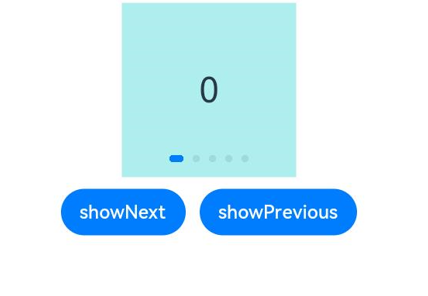
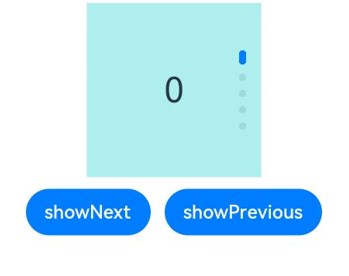
Swiper支持水平和垂直方向上进行轮播,主要通过vertical属性控制。
当vertical为true时,表示在垂直方向上进行轮播;为false时,表示在水平方向上进行轮播。vertical默认值为false。
- 设置水平方向上轮播。
Swiper(
// ···
) {
// ···
}
// ···
.indicator(true)
.vertical(false)
- 设置垂直方向轮播。
Swiper(
// ···
) {
// ···
}
// ···
.indicator(true)
.vertical(true)
每页显示多个子页面
Swiper支持在一个页面内同时显示多个子组件,通过displayCount属性设置。
  Swiper() {
    Text('0')
      .width(250)
      .height(250)
      .backgroundColor(Color.Gray)
      .textAlign(TextAlign.Center)
      .fontSize(30)
    Text('1')
      .width(250)
      .height(250)
      .backgroundColor(Color.Green)
      .textAlign(TextAlign.Center)
      .fontSize(30)
    Text('2')
      .width(250)
      .height(250)
      .backgroundColor(Color.Pink)
      .textAlign(TextAlign.Center)
      .fontSize(30)
    Text('3')
      .width(250)
      .height(250)
      .backgroundColor(Color.Yellow)
      .textAlign(TextAlign.Center)
      .fontSize(30)
  }
// ···
  .indicator(true)
  .displayCount(2)
}

自定义切换动画
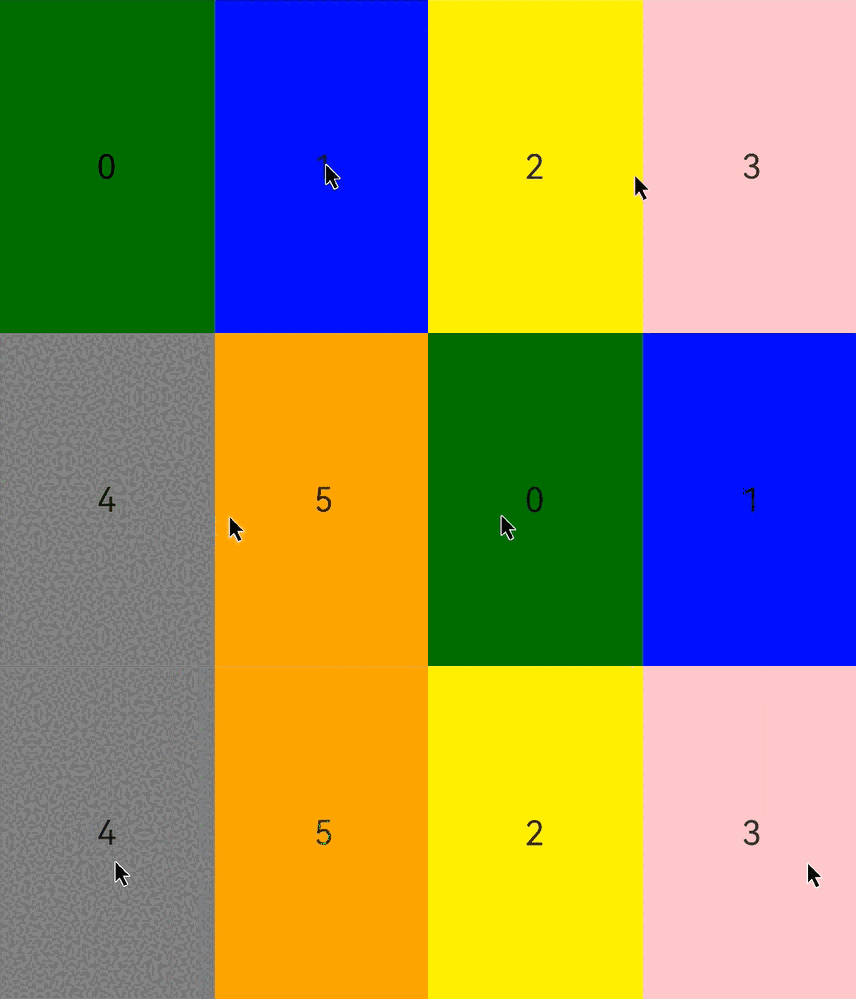
Swiper支持通过customContentTransition设置自定义切换动画,可以在回调中对视窗内所有页面逐帧设置透明度、缩放比例、位移、渲染层级等属性实现自定义切换动画。
// 如需作为页面入口,请取消@Entry的注释并删除export关键字
// @Entry
@Component
export struct SwiperCustomAnimation {
  private DISPLAY_COUNT: number = 2;
  private MIN_SCALE: number = 0.75;
  @State backgroundColors: Color[] = [Color.Green, Color.Blue, Color.Yellow, Color.Pink, Color.Gray, Color.Orange];
  @State opacityList: number[] = [];
  @State scaleList: number[] = [];
  @State translateList: number[] = [];
  @State zIndexList: number[] = [];

  aboutToAppear(): void {
    for (let i = 0; i < this.backgroundColors.length; i++) {
      this.opacityList.push(1.0);
      this.scaleList.push(1.0);
      this.translateList.push(0.0);
      this.zIndexList.push(0);
    }
  }

  build() {
    // ...
      Column({ space: 12 }) {
        // ...
          Swiper() {
            ForEach(this.backgroundColors, (backgroundColor: Color, index: number) => {
              Text(index.toString())
                .width('100%')
                .height('100%')
                .fontSize(50)
                .textAlign(TextAlign.Center)
                .backgroundColor(backgroundColor)
                .opacity(this.opacityList[index])
                .scale({ x: this.scaleList[index], y: this.scaleList[index] })
                .translate({ x: this.translateList[index] })
                .zIndex(this.zIndexList[index])
            })
          }
          .height(300)
          .indicator(false)
          .displayCount(this.DISPLAY_COUNT, true)
          .customContentTransition({
            timeout: 1000,
            transition: (proxy: SwiperContentTransitionProxy) => {
              if (proxy.position <= proxy.index % this.DISPLAY_COUNT ||
                proxy.position >= this.DISPLAY_COUNT + proxy.index % this.DISPLAY_COUNT) {
                // 同组页面完全滑出视窗外时,重置属性值
                this.opacityList[proxy.index] = 1.0;
                this.scaleList[proxy.index] = 1.0;
                this.translateList[proxy.index] = 0.0;
                this.zIndexList[proxy.index] = 0;
              } else {
                // 同组页面未滑出视窗外时,对同组中左右两个页面,逐帧根据position修改属性值
                if (proxy.index % this.DISPLAY_COUNT === 0) {
                  this.opacityList[proxy.index] = 1 - proxy.position / this.DISPLAY_COUNT;
                  this.scaleList[proxy.index] =
                    this.MIN_SCALE + (1 - this.MIN_SCALE) * (1 - proxy.position / this.DISPLAY_COUNT);
                  this.translateList[proxy.index] = -proxy.position * proxy.mainAxisLength +
                    (1 - this.scaleList[proxy.index]) * proxy.mainAxisLength / 2.0;
                } else {
                  this.opacityList[proxy.index] = 1 - (proxy.position - 1) / this.DISPLAY_COUNT;
                  this.scaleList[proxy.index] =
                    this.MIN_SCALE + (1 - this.MIN_SCALE) * (1 - (proxy.position - 1) / this.DISPLAY_COUNT);
                  this.translateList[proxy.index] = -(proxy.position - 1) * proxy.mainAxisLength -
                    (1 - this.scaleList[proxy.index]) * proxy.mainAxisLength / 2.0;
                }
                this.zIndexList[proxy.index] = -1;
              }
            }
          })
          // ...
      }
      .width('100%')
      // ...
  }
}
Swiper与Tabs联动
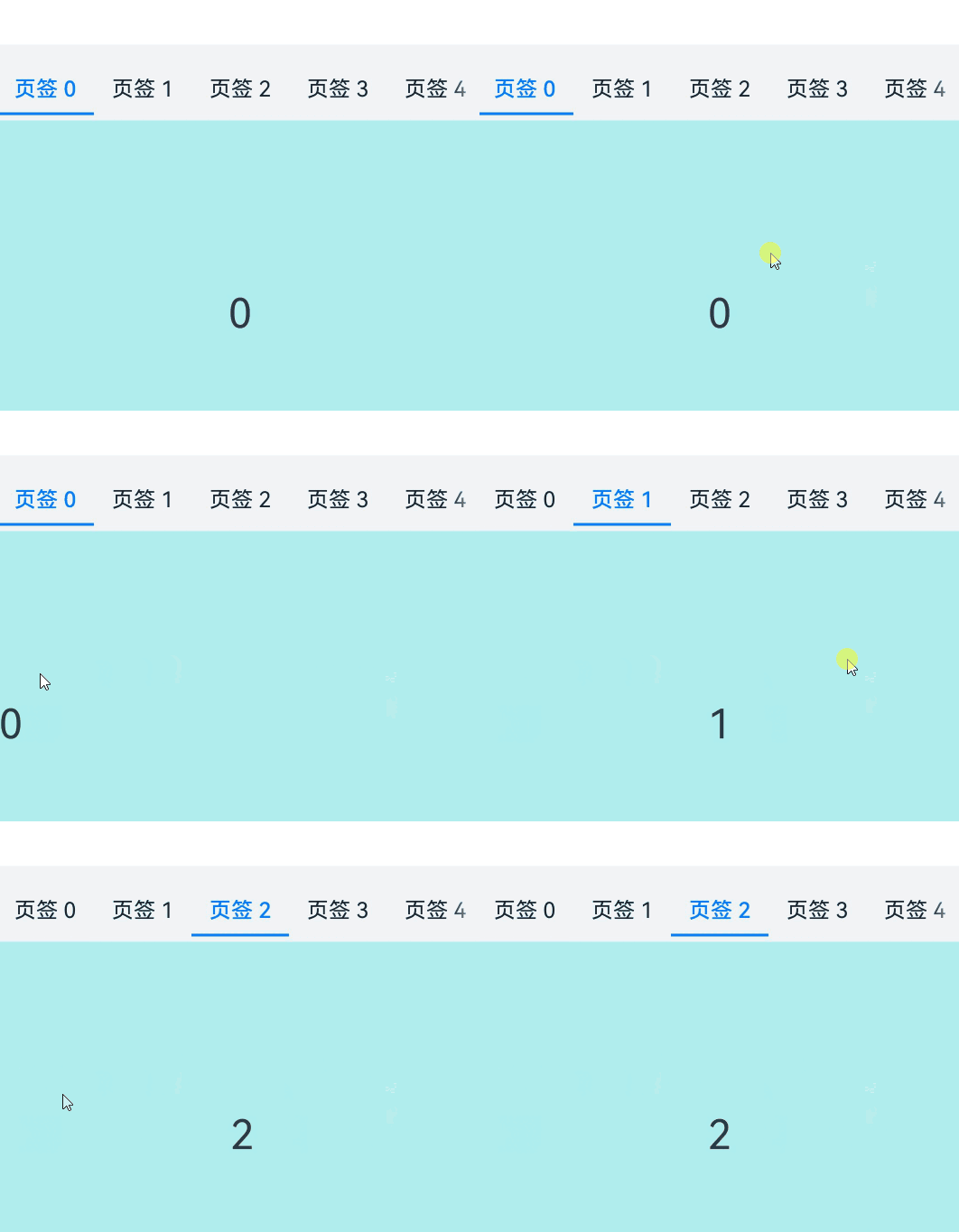
从API version 18开始,Swiper选中的元素改变时,会通过onSelected回调事件,将元素的索引值index返回。通过调用tabsController.changeIndex(index)方法来实现Tabs页签的切换。
// xxx.ets
class MyDataSource implements IDataSource {
  private list: number[] = [];

  constructor(list: number[]) {
    this.list = list;
  }

  totalCount(): number {
    return this.list.length;
  }

  getData(index: number): number {
    return this.list[index];
  }

  registerDataChangeListener(listener: DataChangeListener): void {
  }

  unregisterDataChangeListener() {
  }
}

// 如需作为页面入口,请取消@Entry的注释并删除export关键字
// @Entry
@Component
export struct SwiperAndTabsLinkage {
  @State fontColor: string = '#182431';
  @State selectedFontColor: string = '#007DFF';
  @State currentIndex: number = 0;
  private list: number[] = [];
  private tabsController: TabsController = new TabsController();
  private swiperController: SwiperController = new SwiperController();
  private swiperData: MyDataSource = new MyDataSource([]);
  private context = this.getUIContext().getHostContext() as common.UIAbilityContext;

  aboutToAppear(): void {
    for (let i = 0; i <= 9; i++) {
      this.list.push(i);
    }
    this.swiperData = new MyDataSource(this.list);
  }

  @Builder tabBuilder(index: number, name: string) {
    Column() {
      Text(name)
        .fontColor(this.currentIndex === index ? this.selectedFontColor : this.fontColor)
        .fontSize(16)
        .fontWeight(this.currentIndex === index ? 500 : 400)
        .lineHeight(22)
        .margin({ top: 17, bottom: 7 })
      Divider()
        .strokeWidth(2)
        .color('#007DFF')
        .opacity(this.currentIndex === index ? 1 : 0)
    }.width('20%')
  }

  build() {
    // ...
          Column() {
            Tabs({ barPosition: BarPosition.Start, controller: this.tabsController }) {
              ForEach(this.list, (index: number) =>{
                // 请在resources\base\element\string.json文件中配置name为'swiper_text1' ,value为非空字符串的资源
                TabContent().tabBar(this.tabBuilder(index,
                  this.context.resourceManager.getStringByNameSync('swiper_text1') + this.list[index]))
              })
            }
            .onTabBarClick((index: number) => {
              this.currentIndex = index;
              this.swiperController.changeIndex(index, true);
            })
            .barMode(BarMode.Scrollable)
            .backgroundColor('#F1F3F5')
            .height(56)
            .width('100%')

            Swiper(this.swiperController) {
              LazyForEach(this.swiperData, (item: string) => {
                Text(item.toString())
                  .onAppear(()=>{
                    console.info('onAppear ' + item.toString());
                  })
                  .onDisAppear(()=>{
                    console.info('onDisAppear ' + item.toString());
                  })
                  .width('100%')
                  .height('40%')
                  .backgroundColor(0xAFEEEE)
                  .textAlign(TextAlign.Center)
                  .fontSize(30)
              }, (item: string) => item)
            }
            .loop(false)
            .onSelected((index: number) => {
              console.info('onSelected:' + index);
              this.currentIndex = index;
              this.tabsController.changeIndex(index);
            })
          }
          // ...
  }
}
设置圆点导航点间距
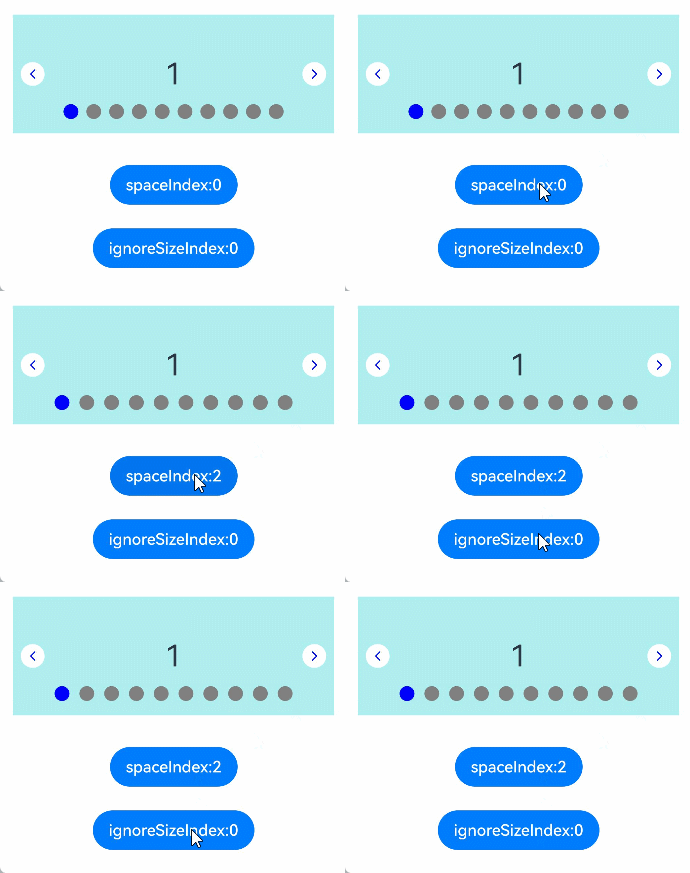
从API version 19开始,针对圆点导航点,可以通过DotIndicator的space属性来设置圆点导航点的间距。
Swiper(
  // ···
) {
  // ···
}
.indicator(new DotIndicator()
  .space(this.space)
  // ···
)
导航点忽略组件大小
当导航点的bottom设为0之后,导航点的底部与Swiper的底部还会有一定间距。如果希望消除该间距,从API version 19开始,可通过调用bottom(bottom, ignoreSize)属性来进行设置。将ignoreSize设置为true,即可忽略导航点组件大小,达到消除该间距的目的。
- 圆点导航点忽略组件大小。
Swiper(
  // ···
) {
  // ···
}
.indicator(new DotIndicator()
  // ···
  .bottom(LengthMetrics.vp(0), this.ignoreSize) // true
  // ···
)
- 数字导航点忽略组件大小。
Swiper(
  // ···
) {
  // ···
}
.indicator(new DigitIndicator()
  .bottom(LengthMetrics.vp(0), true)
)
圆点导航点设置间距及忽略组件大小完整示例代码如下:
import { LengthMetrics } from '@kit.ArkUI';
// ...


class MyDataSource implements IDataSource {
  private list: number[] = [];

  constructor(list: number[]) {
    this.list = list;
  }

  totalCount(): number {
    return this.list.length;
  }

  getData(index: number): number {
    return this.list[index];
  }

  registerDataChangeListener(listener: DataChangeListener): void {
  }

  unregisterDataChangeListener() {
  }
}

// 如需作为页面入口,请取消@Entry的注释并删除export关键字
// @Entry
@Component
export struct SwiperIgnoreComponentSize {

  @State space: LengthMetrics = LengthMetrics.vp(0);
  @State spacePool: LengthMetrics[] = [LengthMetrics.vp(0), LengthMetrics.px(3), LengthMetrics.vp(10)];
  @State spaceIndex: number = 0;

  @State ignoreSize: boolean = false;
  @State ignoreSizePool: boolean[] = [false, true];
  @State ignoreSizeIndex: number = 0;

  private swiperController1: SwiperController = new SwiperController();
  private data1: MyDataSource = new MyDataSource([]);

  aboutToAppear(): void {
    let list1: number[] = [];
    for (let i = 1; i <= 10; i++) {
      list1.push(i);
    }
    this.data1 = new MyDataSource(list1);
  }

  build() {
    // ...
          Scroll() {
            Column({ space: 20 }) {
              Swiper(
                this.swiperController1
              ) {
                LazyForEach(this.data1, (item: string) => {
                  Text(item.toString())
                    .width('90%')
                    .height(120)
                    .backgroundColor(0xAFEEEE)
                    .textAlign(TextAlign.Center)
                    .fontSize(30)
                }, (item: string) => item)
              }
              .indicator(new DotIndicator()
                .space(this.space)
                .bottom(LengthMetrics.vp(0), this.ignoreSize) // true
                .itemWidth(15)
                .itemHeight(15)
                .selectedItemWidth(15)
                .selectedItemHeight(15)
                .color(Color.Gray)
                .selectedColor(Color.Blue)
              )
              .displayArrow({
                showBackground: true,
                isSidebarMiddle: true,
                backgroundSize: 24,
                backgroundColor: Color.White,
                arrowSize: 18,
                arrowColor: Color.Blue
              }, false)

              Column({ space: 4 }) {
                Button('spaceIndex:' + this.spaceIndex).onClick(() => {
                  this.spaceIndex = (this.spaceIndex + 1) % this.spacePool.length;
                  this.space = this.spacePool[this.spaceIndex];
                }).margin(10)

                Button('ignoreSizeIndex:' + this.ignoreSizeIndex).onClick(() => {
                  this.ignoreSizeIndex = (this.ignoreSizeIndex + 1) % this.ignoreSizePool.length;
                  this.ignoreSize = this.ignoreSizePool[this.ignoreSizeIndex];
                }).margin(10)
              }.margin(2)
            }.width('100%')
          }
          // ...
  }
}
保持可见内容位置不变
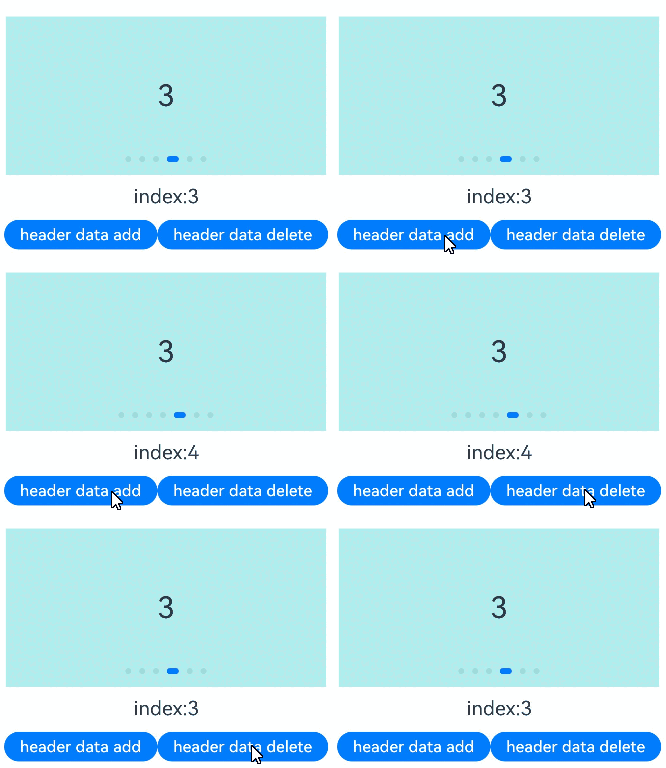
从API version 20开始,Swiper通过设置maintainVisibleContentPosition属性,可在使用LazyForEach懒加载数据时(如通过onDataAdd新增数据),保持当前可见内容位置不变,避免因数据增删导致的视图跳动。该属性默认值为false。
maintainVisibleContentPosition为true时,显示区域上方或前方插入或删除数据时可见内容位置不变。
关于数据LazyForEach:数据懒加载的具体使用,可参考数据懒加载章节中的示例。
// xxx.ets
class MyDataSource implements IDataSource {
  private listeners: DataChangeListener[] = [];
  private dataArray: string[] = ['0', '1', '2', '3', '4', '5', '6'];

  public totalCount(): number {
    return this.dataArray.length;
  }

  public getData(index: number): string | undefined {
    return this.dataArray[index];
  }

  public addData(index: number, data: string): void {
    this.dataArray.splice(index, 0, data);
    this.listeners.forEach(listener => {
      listener.onDataAdd(index);
    })
  }

  public deleteData(index: number): void {
    this.dataArray.splice(index, 1);
    this.listeners.forEach(listener => {
      listener.onDataDelete(index);
    })
  }

  registerDataChangeListener(listener: DataChangeListener): void {
    if (this.listeners.indexOf(listener) < 0) {
      hilog.info(DOMAIN, 'testTag', 'add listener');
      this.listeners.push(listener);
    }
  }

  unregisterDataChangeListener(listener: DataChangeListener): void {
    const pos = this.listeners.indexOf(listener);
    if (pos >= 0) {
      hilog.info(DOMAIN, 'testTag', 'remove listener');
      this.listeners.splice(pos, 1);
    }
  }
}

// 如需作为页面入口,请取消@Entry的注释并删除export关键字
// @Entry
@Component
export struct SwiperVisibleContentPosition {
  private data: MyDataSource = new MyDataSource();
  @State index: number = 3;

  build() {
    // ...
      Column({ space: 12 }) {
        // ...
            Swiper() {
              LazyForEach(this.data, (item: string) => {
                Text(item.toString())
                  .width('90%')
                  .height(160)
                  .backgroundColor(0xAFEEEE)
                  .textAlign(TextAlign.Center)
                  .fontSize(30)
              })
            }
            .onChange((index) => {
              this.index = index;
            })
            .index(3)
            .maintainVisibleContentPosition(true)
            // ...

            Column({ space: 12 }) {
              Text('index:' + this.index).fontSize(20)
              Row() {
                // 在LazyForEach索引为0的位置添加数据
                Button('header data add').height(30).onClick(() => {
                  this.data.addData(0, 'header Data');
                })
                // 删除LazyForEach索引为0的位置数据
                Button('header data delete').height(30).onClick(() => {
                  this.data.deleteData(0);
                })
              }
            }.margin(5)
            // ...
      }.width('100%')
      .margin({ top: 5 })
      // ...
  }
}