创建弧形轮播 (ArcSwiper)(圆形屏幕推荐使用)
ArcSwiper是弧形轮播组件,在圆形屏幕场景下使用,提供弧形轮播显示能力。具体用法请参考ArcSwiper。
在使用ArcSwiper组件之前,需要在代码中先导入ArcSwiper模块。
import {
  ArcSwiper,
  ArcSwiperAttribute,
  ArcDotIndicator,
  ArcDirection,
  ArcSwiperController
} from '@kit.ArkUI';
设置导航点样式
ArcSwiper提供了默认的弧形导航点样式,导航点默认显示在ArcSwiper下方居中位置,开发者也可以通过indicator属性自定义弧形导航点的样式。
通过indicator属性,开发者可以设置弧形导航点的方向,同时也可以设置导航点和被选中导航点的颜色。
-
导航点使用默认样式
ArcSwiper() {Text('0').width(233).height(233).backgroundColor(Color.Gray).textAlign(TextAlign.Center).fontSize(30)Text('1').width(233).height(233).backgroundColor(Color.Green).textAlign(TextAlign.Center).fontSize(30)Text('2').width(233).height(233).backgroundColor(Color.Pink).textAlign(TextAlign.Center).fontSize(30)}
-
自定义导航点样式
导航点位于ArcSwiper组件6点钟方向,导航点颜色设为红色,被选中导航点颜色为蓝色。
ArcSwiper() {// ···}.indicator(new ArcDotIndicator().arcDirection(ArcDirection.SIX_CLOCK_DIRECTION) // 设置导航点位于6点钟方向.itemColor(Color.Red) // 设置导航点颜色为红色.selectedItemColor(Color.Blue) // 设置选中导航点颜色为蓝色)
控制页面切换方式
ArcSwiper支持滑动手指、点击导航点、旋转表冠和控制控制器四种方式切换页面。以下示例展示通过控制控制器和旋转表冠翻页的方法。
-
控制控制器翻页。
// 导入ArcButton和ArcSwiper模块import {ArcButton,ArcButtonOptions,ArcButtonStatus,ArcButtonStyleMode,ArcButtonPosition,ArcSwiper,ArcSwiperAttribute, // ArcSwiper的属性依赖ArcSwiperAttribute对象导入,不建议删除该对象的引入。ArcSwiperController,// ...} from '@kit.ArkUI';// ...// 如需作为页面入口,请取消@Entry的注释并删除export关键字// @Entry@Componentexport struct ArcSwiperToggle {private wearableSwiperController: ArcSwiperController = new ArcSwiperController();build() {// ...Column({ space: 12 }) {// ...Stack() {ArcSwiper(this.wearableSwiperController) {// ...}.vertical(true).indicator(false)// ...Column() {ArcButton({options: new ArcButtonOptions({label: 'previous',position: ArcButtonPosition.TOP_EDGE,styleMode: ArcButtonStyleMode.EMPHASIZED_LIGHT,onClick: () => {this.wearableSwiperController.showPrevious(); // 通过controller切换到前一页}})})Blank()ArcButton({options: new ArcButtonOptions({label: 'next',position: ArcButtonPosition.BOTTOM_EDGE,styleMode: ArcButtonStyleMode.EMPHASIZED_LIGHT,onClick: () => {this.wearableSwiperController.showNext(); // 通过controller切换到后一页}})})}.width('100%').height('100%')}// ...}// ...}}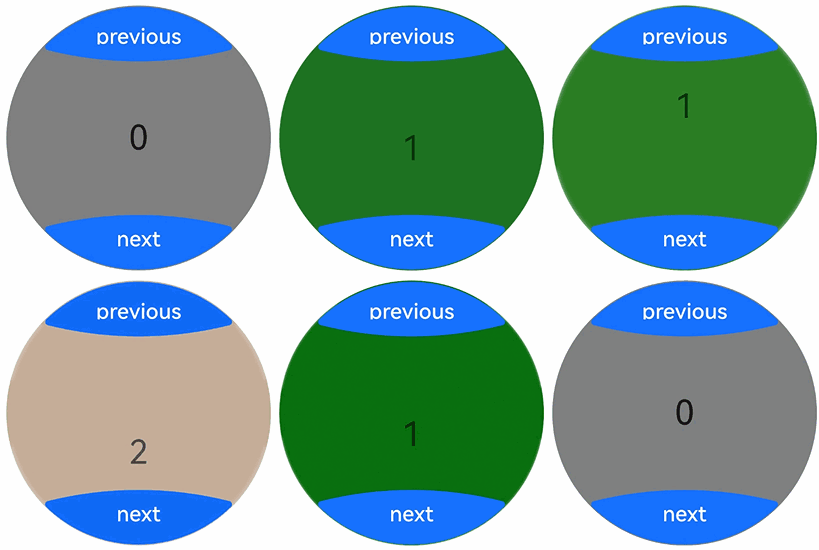
-
旋转表冠翻页。
ArcSwiper在获得焦点时能够响应旋转表冠的操作,用户可以通过旋转表冠来滑动ArcSwiper,从而浏览数据。
ArcSwiper(// ···) {// ···}// ···.focusable(true).focusOnTouch(true).defaultFocus(true)还可以通过设置digitalCrownSensitivity属性来调整表冠对事件响应的灵敏度,以适应不同规模的数据处理。在处理大量数据时,可以提高响应事件的灵敏度;而在处理少量数据时,则可以降低灵敏度设置。
ArcSwiper(// ···) {// ···}// ···.digitalCrownSensitivity(CrownSensitivity.MEDIUM)
设置轮播方向
ArcSwiper支持水平和垂直方向上进行轮播,主要通过vertical属性控制。
当vertical为true时,表示在垂直方向上进行轮播;为false时,表示在水平方向上进行轮播。vertical默认值为false。
-
设置水平方向上轮播。
ArcSwiper() {// ···}.indicator(true).vertical(false) -
设置垂直方向轮播,导航点设为3点钟方向。
ArcSwiper() {// ···}.indicator(new ArcDotIndicator().arcDirection(ArcDirection.THREE_CLOCK_DIRECTION)).vertical(true)
自定义切换动画
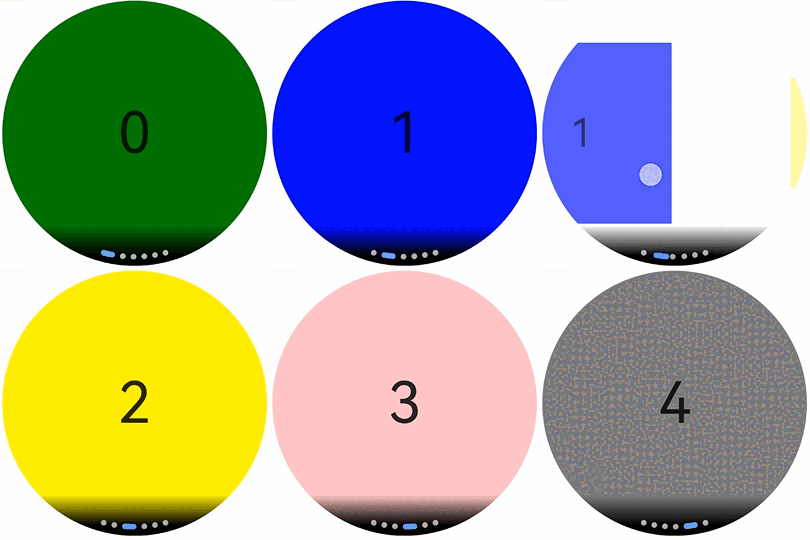
ArcSwiper支持通过customContentTransition设置自定义切换动画,可以在回调中对视窗内所有页面逐帧设置透明度、缩放比例、位移、渲染层级等属性,从而实现自定义切换动画效果。
import { Decimal } from '@kit.ArkTS';
import {
  ArcSwiper,
  ArcSwiperAttribute, // ArcSwiper的属性依赖ArcSwiperAttribute对象导入,不建议删除该对象的引入。
} from '@kit.ArkUI';
// ...

// 如需作为页面入口,请取消@Entry的注释并删除export关键字
// @Entry
@Component
export struct ArcSwiperAction {
  private MIN_SCALE: number = 0.1;
  @State backgroundColors: Color[] = [Color.Green, Color.Blue, Color.Yellow, Color.Pink, Color.Gray, Color.Orange];
  @State opacityList: number[] = [];
  @State scaleList: number[] = [];

  aboutToAppear(): void {
    for (let i = 0; i < this.backgroundColors.length; i++) {
      this.opacityList.push(1.0);
      this.scaleList.push(1.0);
    }
  }

  build() {
    // ...
      Column({ space: 12 }) {
        // ...
          ArcSwiper() {
            ForEach(this.backgroundColors, (backgroundColor: Color, index: number) => {
              Text(index.toString())
                .width(233)
                .height(233)
                .fontSize(50)
                .textAlign(TextAlign.Center)
                .backgroundColor(backgroundColor)
                .opacity(this.opacityList[index])
                .scale({ x: this.scaleList[index], y: this.scaleList[index] })
            })
          }
          .customContentTransition({
            timeout: 1000,
            transition: (proxy: SwiperContentTransitionProxy) => {
              if (proxy.position <= -1 || proxy.position >= 1) {
                // 页面完全滑出视窗外时,重置属性值
                this.opacityList[proxy.index] = 1.0;
                this.scaleList[proxy.index] = 1.0;
              } else {
                let position: number = Decimal.abs(proxy.position).toNumber();
                this.opacityList[proxy.index] = 1 - position;
                this.scaleList[proxy.index] =
                  this.MIN_SCALE + (1 - this.MIN_SCALE) * (1 - position);
              }
            }
          })
          // ...
      }
      .width('100%')
      // ...
  }
}
实现侧滑返回
ArcSwiper的滑动事件会与侧滑返回冲突,可以通过onGestureRecognizerJudgeBegin去判断ArcSwiper是否滑动到开头去拦截ArcSwiper的滑动手势,实现再次左滑返回上一页的功能。
import {
  ArcSwiper,
  ArcSwiperAttribute, // ArcSwiper的属性依赖ArcSwiperAttribute对象导入,不建议删除该对象的引入。
} from '@kit.ArkUI';
// ...

// 如需作为页面入口,请取消@Entry的注释并删除export关键字
// @Entry
@Component
export struct ArcSwiperSideSlip {
  @State backgroundColors: Color[] = [Color.Green, Color.Blue, Color.Yellow, Color.Pink, Color.Gray, Color.Orange];
  innerSelectedIndex: number = 0;

  build() {
    // ...
      Column({ space: 12 }) {
        // ...
          ArcSwiper() {
            ForEach(this.backgroundColors, (backgroundColor: Color, index: number) => {
              Text(index.toString())
                .width(233)
                .height(233)
                .fontSize(50)
                .textAlign(TextAlign.Center)
                .backgroundColor(backgroundColor)
            })
          }
          .onAnimationStart((index: number, targetIndex: number) => {
            this.innerSelectedIndex = targetIndex;
          })
          .onGestureRecognizerJudgeBegin((event: BaseGestureEvent, current: GestureRecognizer,
            others: Array<GestureRecognizer>): GestureJudgeResult => { // 在识别器即将要成功时,根据当前组件状态,设置识别器使能状态
            if (current) {
              let target = current.getEventTargetInfo();
              if (target && current.isBuiltIn() && current.getType() == GestureControl.GestureType.PAN_GESTURE) {
                let swiperTarget = target as ScrollableTargetInfo;
                if (swiperTarget instanceof ScrollableTargetInfo &&
                  (swiperTarget.isBegin() || this.innerSelectedIndex === 0)) { // 此处判断swiperTarget.isBegin()或innerSelectedIndex === 0,表明ArcSwiper滑动到开头
                  let panEvent = event as PanGestureEvent;
                  if (panEvent && panEvent.offsetX > 0 && (swiperTarget.isBegin() || this.innerSelectedIndex === 0)) {
                    return GestureJudgeResult.REJECT;
                  }
                }
              }
            }
            return GestureJudgeResult.CONTINUE;
          })
          // ...
      }
      .width('100%')
      // ...
  }
}