按钮 (Button)
Button是按钮组件,通常用于响应用户的点击操作,其类型包括胶囊按钮、圆形按钮、普通按钮、圆角矩形按钮。Button作为容器使用时可以通过添加子组件实现包含文字、图片等元素的按钮。具体用法请参考Button。
创建按钮
Button通过调用接口来创建,接口调用有以下两种形式:
-
通过label和ButtonOptions创建不包含子组件的按钮。以ButtonOptions中的type和stateEffect为例。
Button(label?: ResourceStr, options?: { type?: ButtonType, stateEffect?: boolean })其中,label用来设置按钮文字,type用于设置Button类型,stateEffect属性设置Button是否开启点击效果。
Button('Ok', { type: ButtonType.Normal, stateEffect: true }).borderRadius(8).backgroundColor(0x317aff).width(90).height(40)
-
通过ButtonOptions创建包含子组件的按钮。以ButtonOptions中的type和stateEffect为例。
Button(options?: {type?: ButtonType, stateEffect?: boolean})只支持包含一个子组件,子组件可以是基础组件或者容器组件。
Button({ type: ButtonType.Normal, stateEffect: true }) {Row() {// 请将$r('app.media.loading')替换为实际资源文件Image($r('app.media.loading')).width(20).height(40).margin({ left: 12 })Text('loading').fontSize(12).fontColor(0xffffff).margin({ left: 5, right: 12 })}.alignItems(VerticalAlign.Center)}.borderRadius(8).backgroundColor(0x317aff).width(90).height(40)
设置按钮类型
Button有四种可选类型,分别为胶囊类型(Capsule)、圆形按钮(Circle)、普通按钮(Normal)和圆角矩形按钮(ROUNDED_RECTANGLE),通过type进行设置。
-
胶囊按钮(默认类型)。
此类型按钮的圆角自动设置为高度的一半,不支持通过borderRadius属性重新设置圆角。
Button('Disable', { type: ButtonType.Capsule, stateEffect: false }).backgroundColor(0x317aff).width(90).height(40)
-
圆形按钮。
此类型按钮为圆形,不支持通过borderRadius属性重新设置圆角。
Button('Circle', { type: ButtonType.Circle, stateEffect: false }).backgroundColor(0x317aff).width(90).height(90)
-
普通按钮。
此类型的按钮默认圆角为0,支持通过borderRadius属性重新设置圆角。
Button('Ok', { type: ButtonType.Normal, stateEffect: true }).borderRadius(8).backgroundColor(0x317aff).width(90).height(40) -
圆角矩形按钮。
当controlSize为NORMAL时,默认圆角大小为20vp,controlSize为SMALL时,圆角大小为14vp,支持通过borderRadius属性重新设置圆角。
Button('Disable', { type: ButtonType.ROUNDED_RECTANGLE, stateEffect: true }).backgroundColor(0x317aff).width(90).height(40)
自定义样式
-
设置边框弧度。
使用通用属性来自定义按钮样式。例如通过borderRadius属性设置按钮的边框弧度。
Button('circle border', { type: ButtonType.Normal }).borderRadius(20).height(40)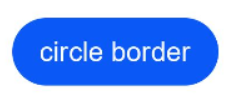
-
设置文本样式。
通过添加文本样式设置按钮文本的展示样式。
Button('font style', { type: ButtonType.Normal }).fontSize(20).fontColor(Color.Pink).fontWeight(800)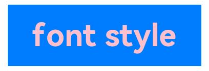
-
设置背景颜色。
添加backgroundColor属性设置按钮的背景颜色。
Button('background color').backgroundColor(0xF55A42)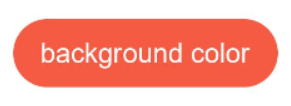
-
创建功能型按钮。
创建删除操作的按钮。
Button({ type: ButtonType.Circle, stateEffect: true }) {// 请将$r('app.media.ic_public_delete_filled3')替换为实际资源文件Image($r('app.media.ic_public_delete_filled')).width(30).height(30)}.width(55).height(55).margin({ 'left': 20 }).backgroundColor(0xF55A42)
添加事件
Button组件通常用于触发某些操作,可以绑定onClick事件来响应点击操作后的自定义行为。
Button('Ok', { type: ButtonType.Normal, stateEffect: true })
  .onClick(()=>{
    hilog.info(DOMAIN, 'testTag', 'Button onClick');
  }).margin(10)
场景示例
-
用于启动操作。
可以用按钮启动任何用户界面元素,按钮会根据用户的操作触发相应的事件。例如,在List容器里通过点击按钮进行页面跳转。
const DOMAIN = 0x0000;// xxx.ets@Entry@Componentexport struct ButtonCaseTouch {pathStack: NavPathStack = new NavPathStack();@BuilderPageMap(name: string) {if (name === 'first_page') {pageOneTmp()} else if (name === 'second_page') {pageTwoTmp()} else if (name === 'third_page') {pageThreeTmp()}}build() {NavDestination() {Navigation(this.pathStack) {List({ space: 4 }) {ListItem() {Button('First').onClick(() => {this.pathStack.pushPath({ name: 'first_page' });}).width('100%')}ListItem() {Button('Second').onClick(() => {this.pathStack.pushPath({ name: 'second_page' });}).width('100%')}ListItem() {Button('Third').onClick(() => {this.pathStack.pushPath({ name: 'third_page' });}).width('100%')}}.listDirection(Axis.Vertical).backgroundColor(0xDCDCDC).padding(20)}.mode(NavigationMode.Stack).navDestination(this.PageMap)}}}// pageOne@Componentexport struct pageOneTmp {pathStack: NavPathStack = new NavPathStack();build() {NavDestination() {Column() {Text('first_page')}.width('100%').height('100%')}.title('pageOne').onBackPressed(() => {const popDestinationInfo = this.pathStack.pop(); // 弹出路由栈栈顶元素// 请将$r('app.string.return_value')替换为实际资源文件,在本示例中该资源文件的value值为"返回值"hilog.info(DOMAIN, 'testTag', 'pop' + $r('app.string.return_value') + JSON.stringify(popDestinationInfo));return true;}).onReady((context: NavDestinationContext) => {this.pathStack = context.pathStack;})}}// pageTwo@Componentexport struct pageTwoTmp {pathStack: NavPathStack = new NavPathStack();build() {NavDestination() {Column() {Text('second_page')}.width('100%').height('100%')}.title('pageTwo').onBackPressed(() => {const popDestinationInfo = this.pathStack.pop(); // 弹出路由栈栈顶元素// 请将$r('app.string.return_value')替换为实际资源文件,在本示例中该资源文件的value值为"返回值"hilog.info(DOMAIN, 'testTag', 'pop' + $r('app.string.return_value') + JSON.stringify(popDestinationInfo));return true;}).onReady((context: NavDestinationContext) => {this.pathStack = context.pathStack;})}}// pageThree@Componentexport struct pageThreeTmp {pathStack: NavPathStack = new NavPathStack();build() {NavDestination() {Column() {Text('third_page')}.width('100%').height('100%')}.title('pageThree').onBackPressed(() => {const popDestinationInfo = this.pathStack.pop(); // 弹出路由栈栈顶元素/// 请将$r('app.string.return_value')替换为实际资源文件,在本示例中该资源文件的value值为"返回值"hilog.info(DOMAIN, 'testTag', 'pop' + $r('app.string.return_value') + JSON.stringify(popDestinationInfo));return true;}).onReady((context: NavDestinationContext) => {this.pathStack = context.pathStack;})}}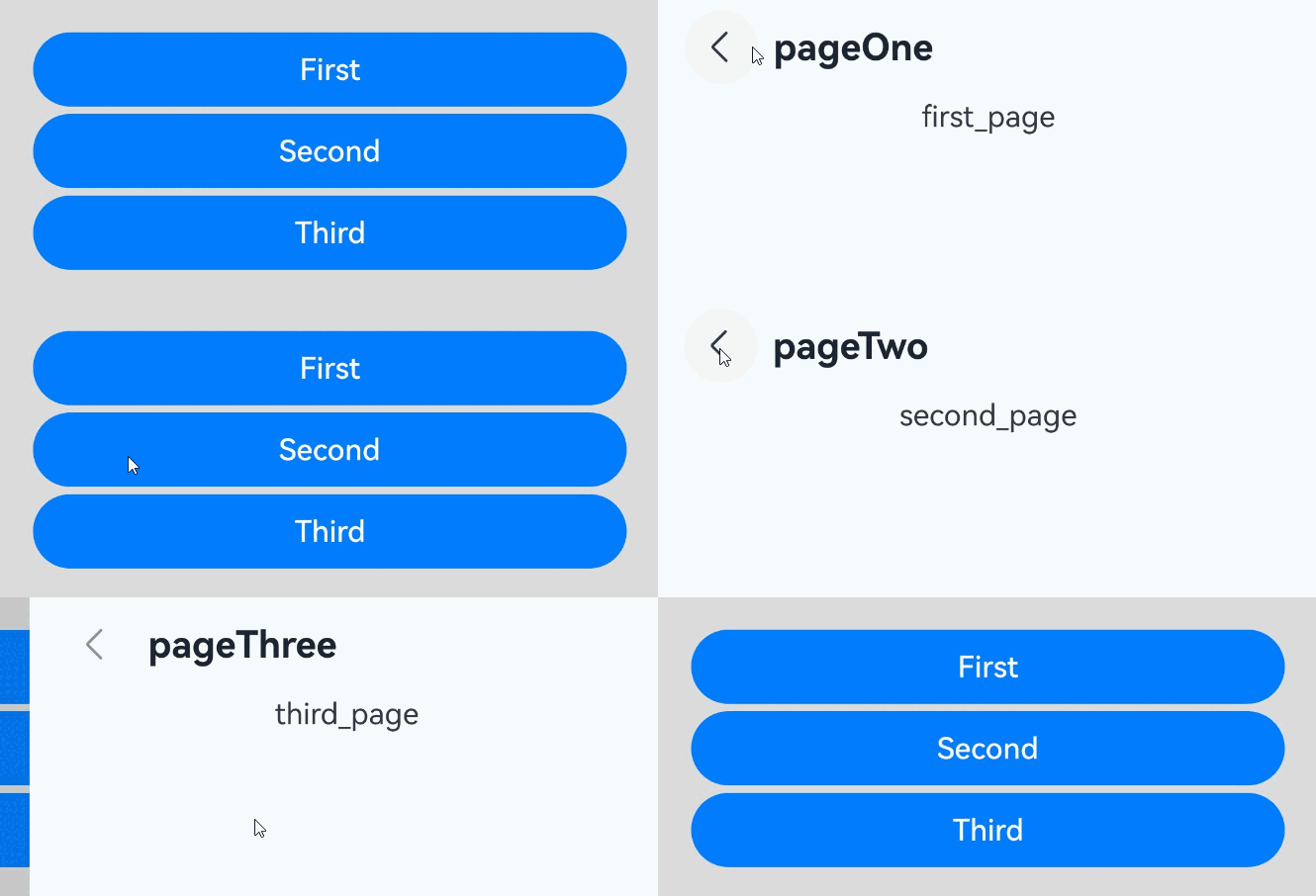
-
用于提交表单。
在用户登录/注册页面,使用按钮进行登录或注册操作。
// xxx.etsconst DOMAIN = 0x0000;@Entry@Componentexport struct ButtonCaseLogin {build() {NavDestination() {Column() {TextInput({ placeholder: 'input your username' }).margin({ top: 20 })TextInput({ placeholder: 'input your password' }).type(InputType.Password).margin({ top: 20 })Button('Register').width(300).margin({ top: 20 }).onClick(() => {// 需要执行的操作})// ···}.padding(20)}}}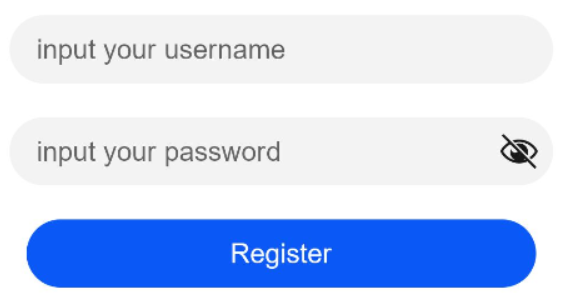
-
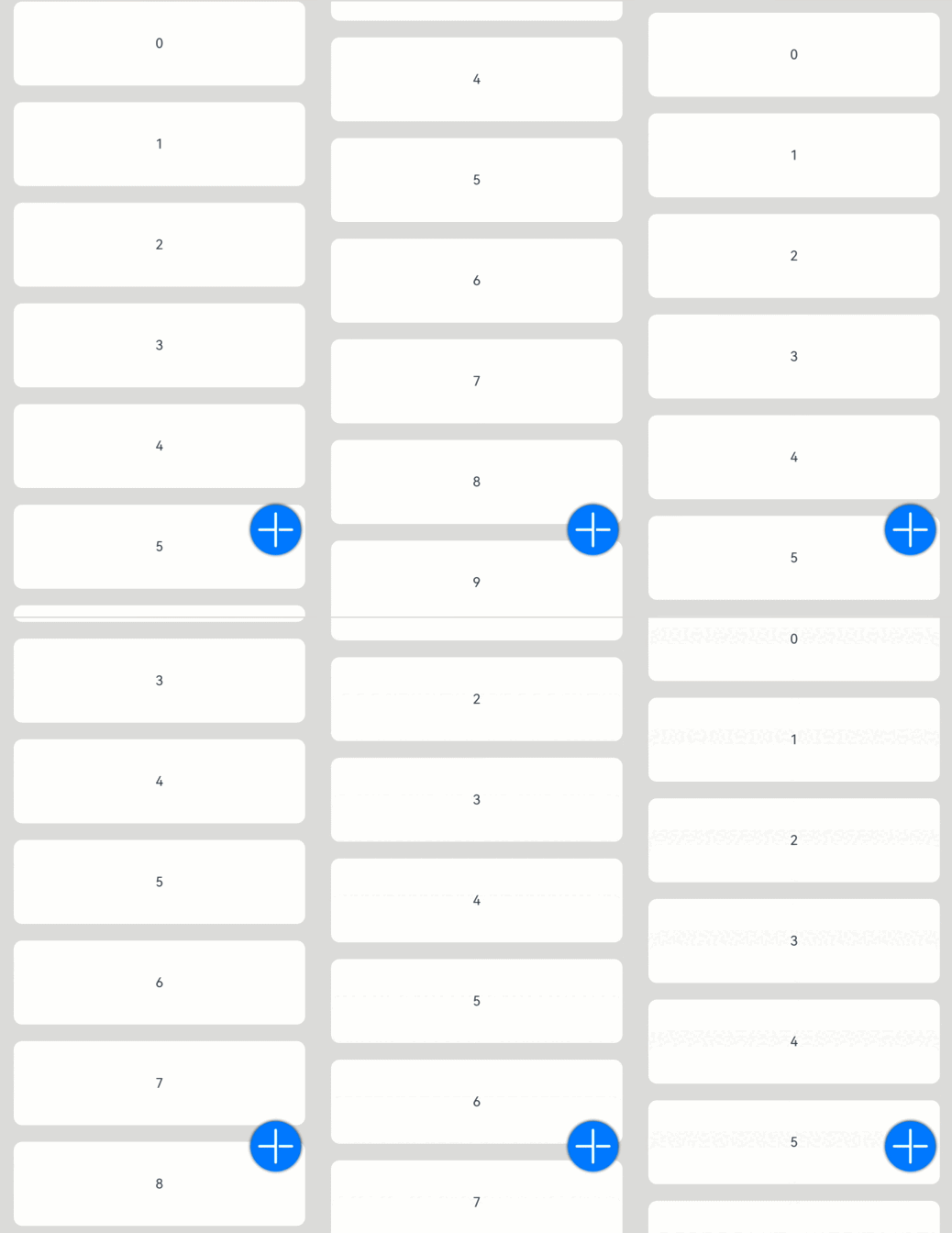
悬浮按钮。
在可以滑动的界面,滑动时按钮始终保持悬浮状态。
// xxx.ets@Entry@Componentexport struct HoverButtonExample {private arr: number[] = [0, 1, 2, 3, 4, 5, 6, 7, 8, 9];build() {NavDestination() {Stack() {List({ space: 20, initialIndex: 0 }) {ForEach(this.arr, (item: number) => {ListItem() {Text('' + item).width('100%').height(100).fontSize(16).textAlign(TextAlign.Center).borderRadius(10).backgroundColor(0xFFFFFF)}}, (item: number) => item.toString())}.width('90%')Button() {// 请将$r('app.media.ic_public_add')替换为实际资源文件Image($r('app.media.ic_public_add')).width(50).height(50)}.width(60).height(60).position({ x: '80%', y: 600 }).shadow({ radius: 10 }).onClick(() => {// 需要执行的操作})}.width('100%').height('100%').backgroundColor(0xDCDCDC).padding({ top: 5 })}}}